
Don’t miss out on any new features
Plugin news, updates and practical Shopware tips. Once a month.
Selecting variants in the product listing, shopping basket and checkout
With Selecting variants in the product listing, shopping basket and checkout Your customers can easily select and switch between product variants – from the first click on the product listing right through to the order summary at checkout. Instead of deleting an item and searching for the correct variant again, all it takes is a single click on the relevant selection field.
The variant selection is available in four places:
- in the Product listing (via a selection modal when clicking „Add to basket“),
- in the Shopping basket,
- in the OffCanvas shopping basket (the drop-down mini-basket) and
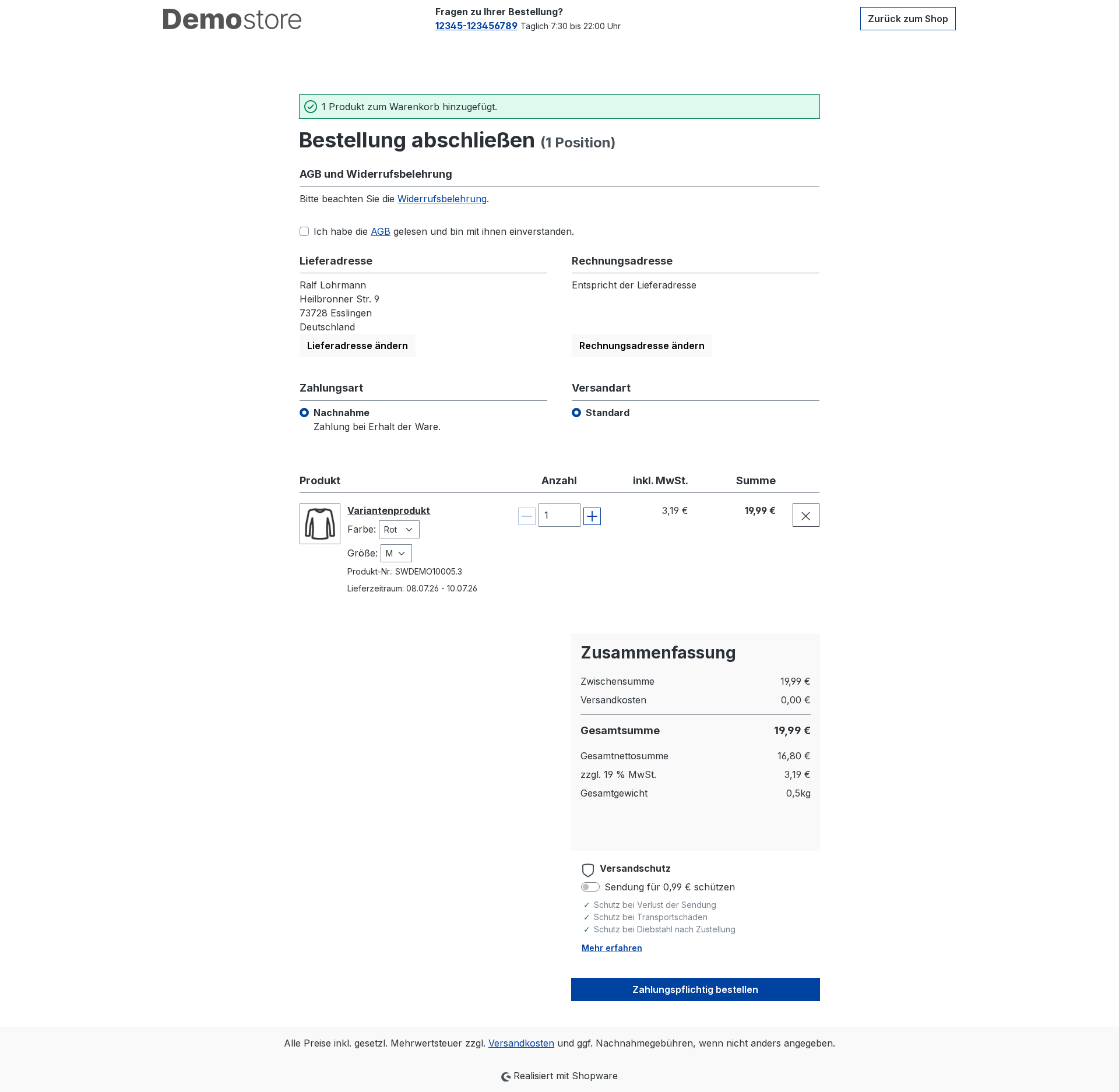
- in the Order summary at checkout.
A separate selection field appears for each attribute (e.g. colour or size). If the customer selects a different option, the plugin automatically replaces the item with the corresponding variant. If the new variant is already in the shopping basket, the quantities are combined.
Prerequisites
- Shopware 6.7
- Products with Variants (Properties such as colour, size, etc.). No selection box appears for items without variants.
Compatibility
The plugin enhances the standard display of product listings, shopping basket items in the shopping basket, the off-canvas shopping basket and the checkout. It utilises the standard Shopware variants (properties / property groups) and does not require any external services.
Installation
- Purchase the plugin from the Shopware Store and via Extensions > My extensions Install.
- Plugin activate.
- In the Storefront, refresh the page once (Ctrl + F5) so that the selection fields appear.
Settings
You can find the configuration under Extensions > My extensions in the „Variant Selection in Listing, Basket & Checkout“ plugin, via the three dots > Configuration. In the area of General settings There are four options available:
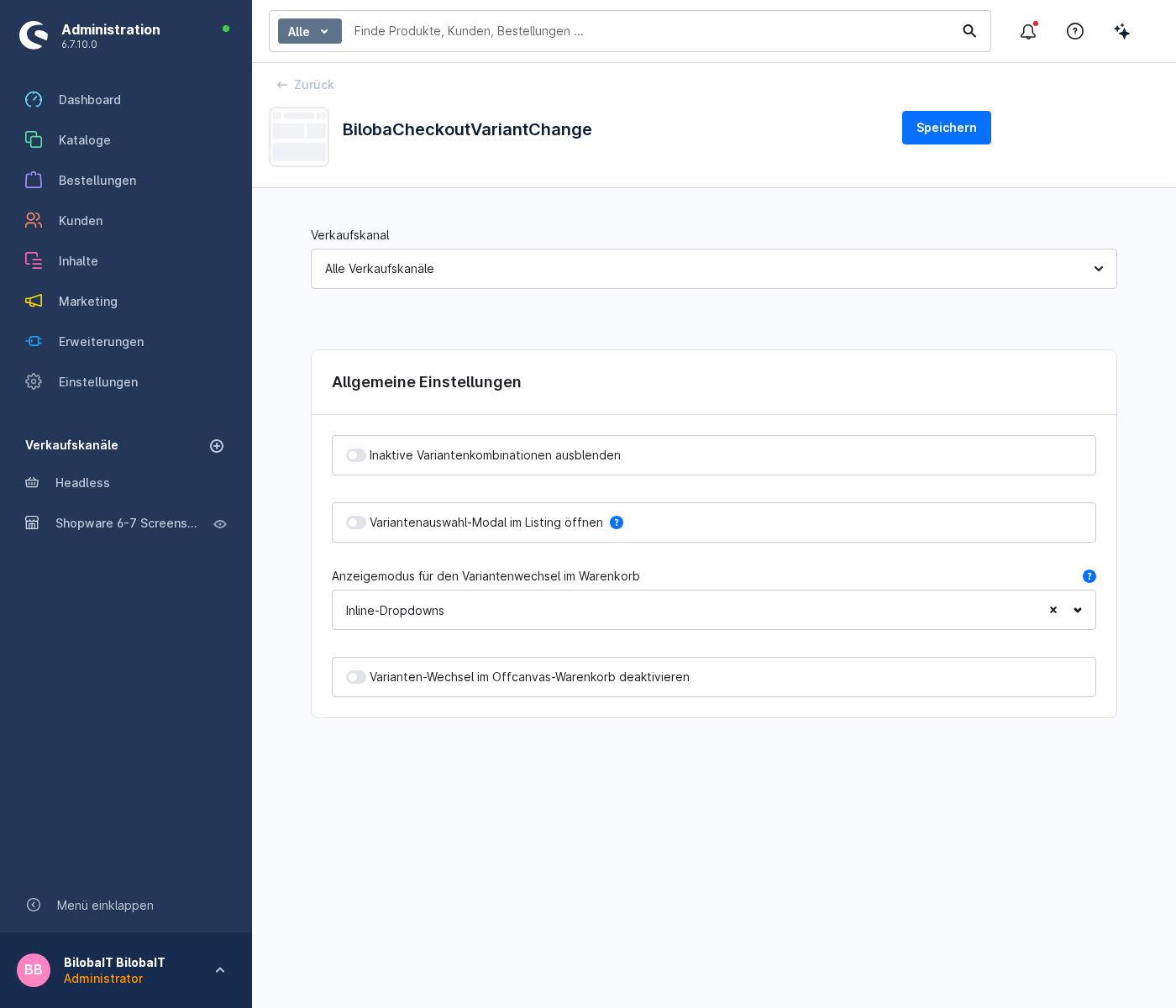
Hide inactive variant combinations
Disabled by default. If this switch is enabled, the following will appear in the selection fields only combinations of variants that are actually available displayed. The plugin hides options that do not lead to a purchasable variant. This prevents customers from selecting a combination that does not exist.
Open the variant selection modal in the listing
Disabled by default. If this switch is enabled, clicking „Add to basket“ for a variant product in a listing, in sliders or in experience worlds will open a modal for selecting variants before the product is added to the basket. The Shopware setting „Allow purchase from listing“ is taken into account. Clear the cache after changing this setting.
Display mode for changing variants in the shopping basket
Specifies how variant changes are displayed in the shopping basket, the off-canvas shopping basket and the checkout:
- Inline drop-downs (Default) – the selection fields appear directly at that position.
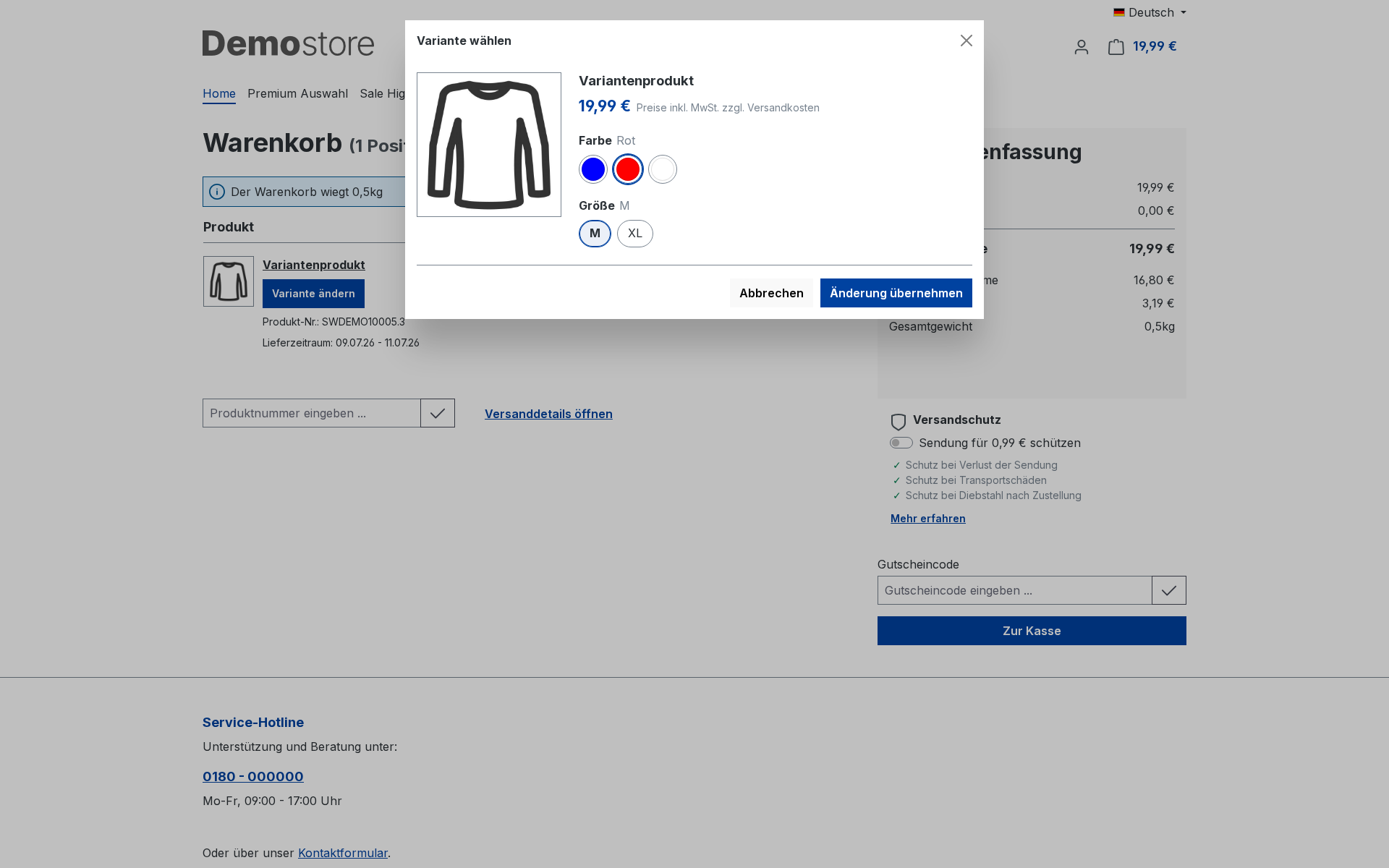
- Modal – instead, a „Change variant“ button appears, which opens a selection modal.
Disable variant switching in the off-canvas shopping basket
Disabled by default. If this switch is enabled, the selection fields appear not in the OffCanvas shopping basket – where the properties are displayed as normal text again. It is still possible to change variants in the shopping basket and during checkout.
1 · Select the variant in the listing
If the setting „Open variant selection modal in listing“ is enabled, clicking „Add to basket“ for a variant product in the product listing, in sliders or in experience worlds will open a modal for selecting variants. This ensures that the correct variant is added to the basket without the customer having to visit the product details page first.
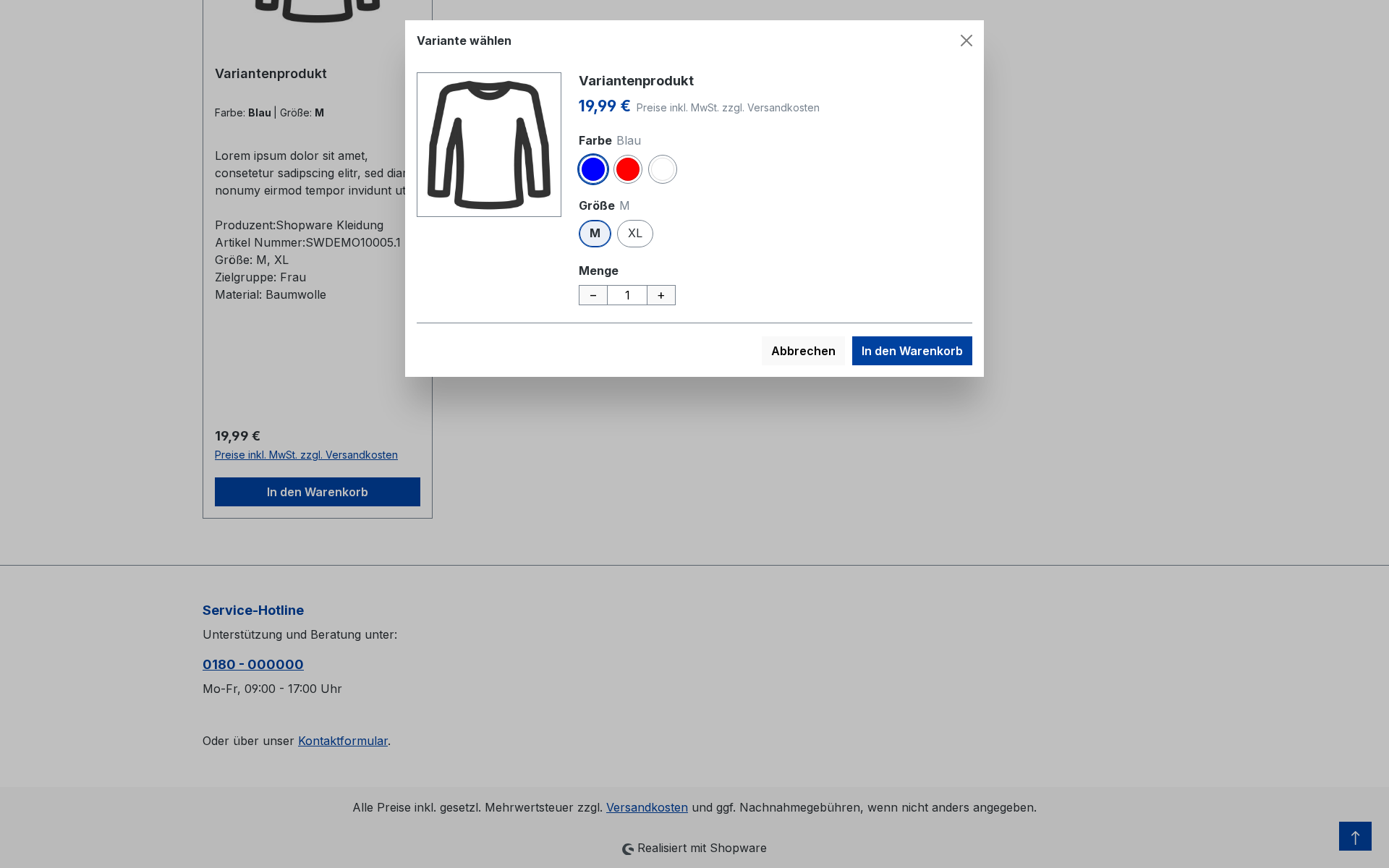
The Shopware setting „Allow purchase from listing“ is taken into account here – if it is disabled, no selection modal will appear.
2 · Change the variant in your basket
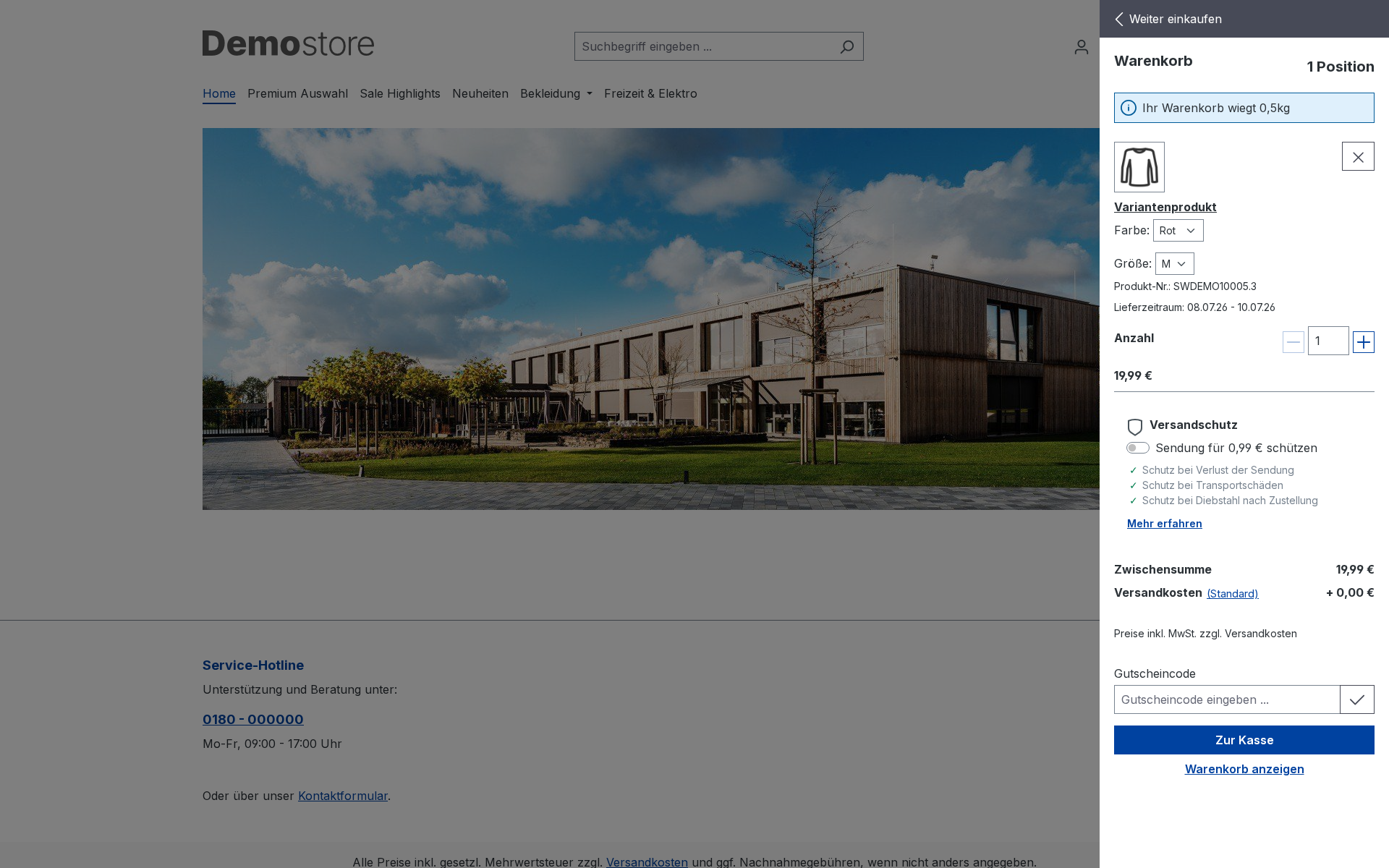
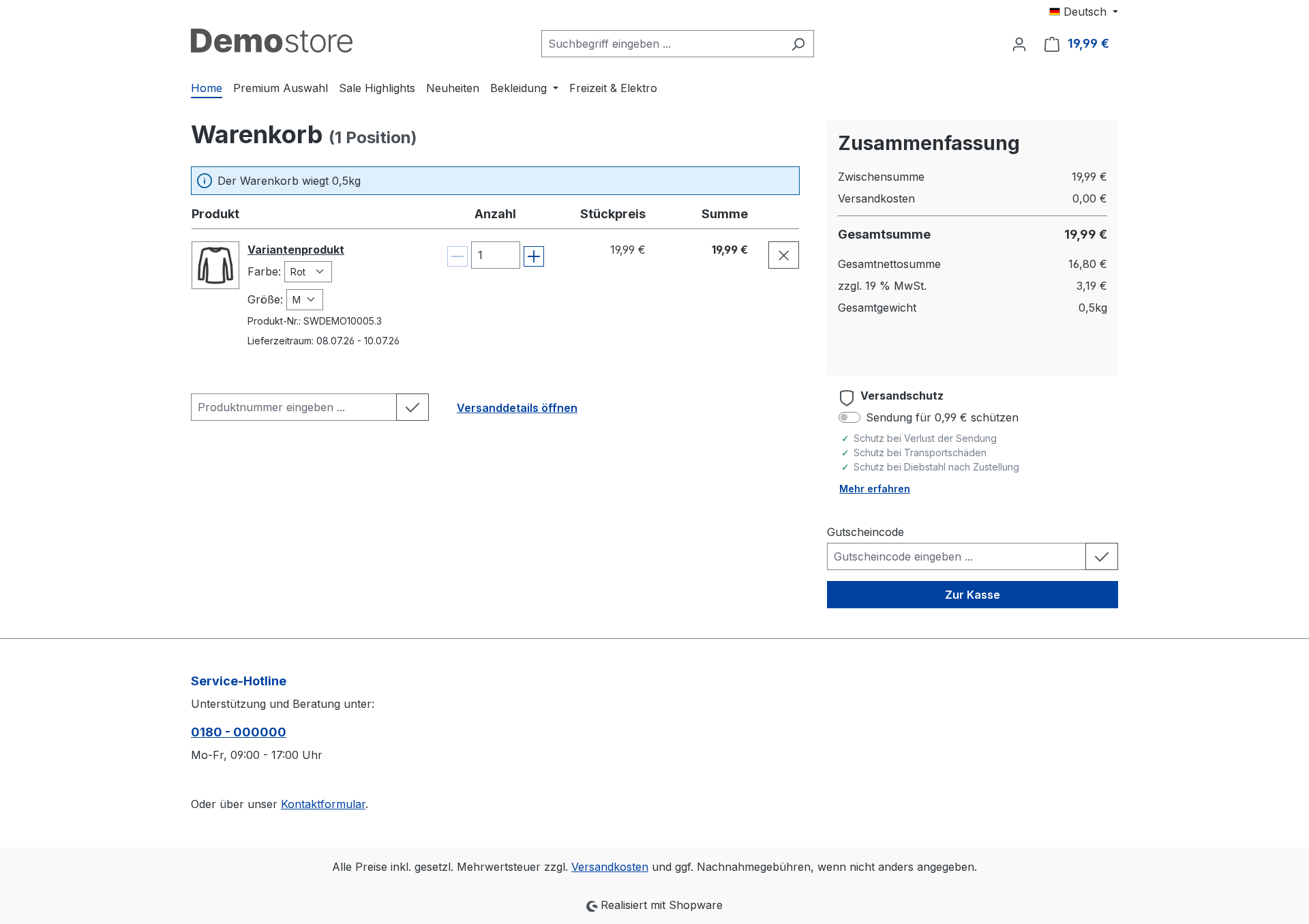
If an item in the shopping basket has variants, the plugin displays either a drop-down menu for each attribute directly next to the item, or a „Change variant“ button that opens a selection modal, depending on the selected display mode. In both cases, the item is immediately replaced with the appropriate variant, and the price and availability are updated.
Inline drop-downs (Standard) in the OffCanvas shopping basket, without reloading the page:
On the Shopping basket page the selection is applied and the page refreshes briefly:
In the Modal display mode Instead, the „Change variant“ button opens a selection window:
In the Order summary at checkout Can the variant still be changed?
3 · Exclude property from variant change
In some cases, customers should not be allowed to change every property – for example, if the colour is to remain fixed whilst the size can still be changed. To achieve this, each Property group exclude them individually from the variant change.
How to enable the exclusion
- In the admin section, go to Catalogues > Features change.
- Open the required property group (e.g. „Colour“).
- The switch „Exclude a change of variant“ Enable and save.
- Then the Clear cache, so that the change takes effect in the storefront.
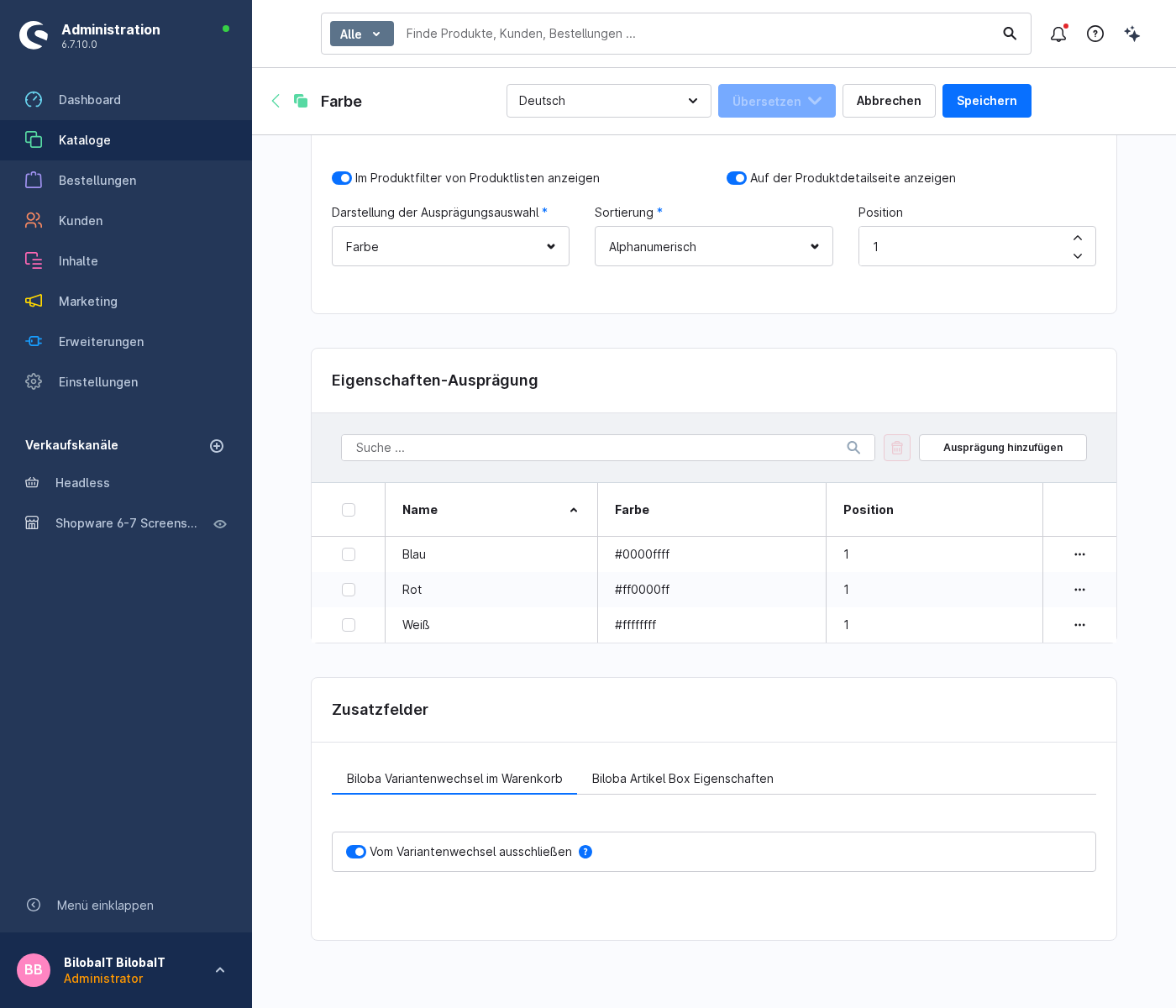
This is how the exclusion affects things
An excluded property is no longer offered as a selection option in the listing modal, shopping basket, off-canvas shopping basket and checkout, but is instead displayed as fixed text shown. The customer can still see which option (e.g. which colour) has been selected, but can no longer change it. All other properties can still be changed as normal.
The restriction is also enforced on the server side – the blocked property cannot be circumvented, even via tampered requests.
FAQs
Support
If you have any questions or problems, please do not hesitate to contact us:
- Support request: biloba-it.de/shopware-plugin-support
- e-mail: support@biloba-it.de
- Phone: +49 (0) 711 - 13633800
No solution found?
Describe your problem to us - we'll take a look at it and get back to you as soon as possible.
 German
  English