
Don’t miss out on any new features
Extension news, updates and practical Shopware tips. Once a month.
Installation instructions
Install the extension via the extension area.
Setting up the extension in Shopware
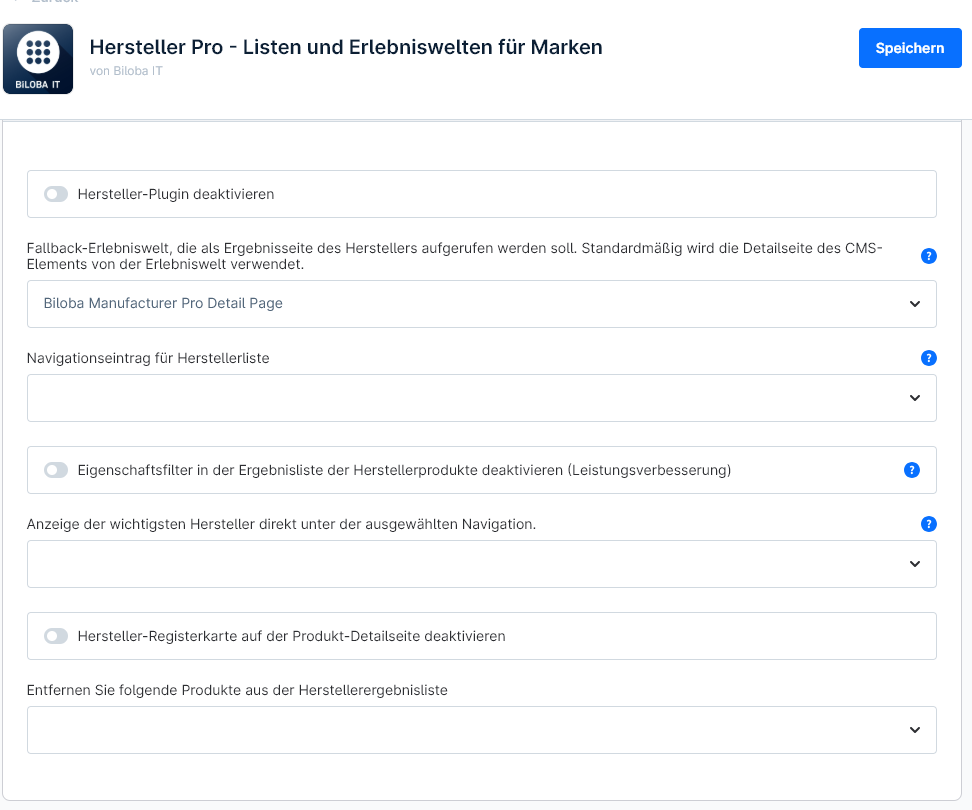
- Fallback experience world that is to be called up as the manufacturer's results page. By default, the detail page of the CMS element is used by the experience world.
- This option offers a fallback world of experience if something should go wrong with the actual world of experience.
- Navigation entry for manufacturer list.
- This option creates a breadcrumb for the navigation entry in which the manufacturer list is located.
- On manufacturer pages, the extension highlights the menu item for the selected category in the shop’s navigation. If another extension has already rendered a template, the menu item on manufacturer pages remains unhighlighted.
- Deactivate property filter in the results list of manufacturer products (performance improvement).
- This option is for large product catalogues with many filters and brings a significant improvement in performance when activated.
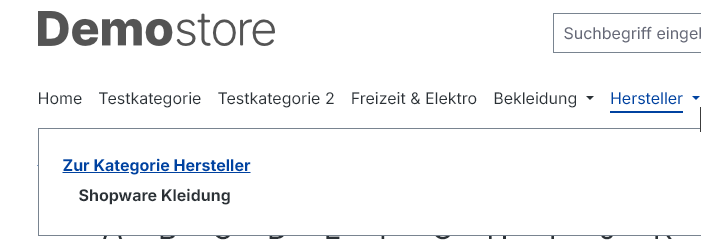
- Display of the most important manufacturers directly below the selected navigation.
- If the “Highlight manufacturer” option is enabled for a manufacturer, it will be displayed in the drop-down menu in the navigation bar shown here.
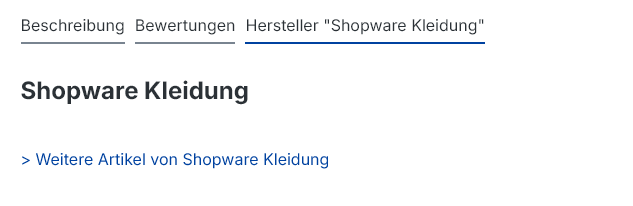
- Deactivate the manufacturer tab on the product details page.
- This option disables the “Manufacturer” tab on the product details page.
- Remove the following products from the manufacturer results list.
- If certain products are not to be displayed in the manufacturer results list, they can be selected here.
Manufacturer settings
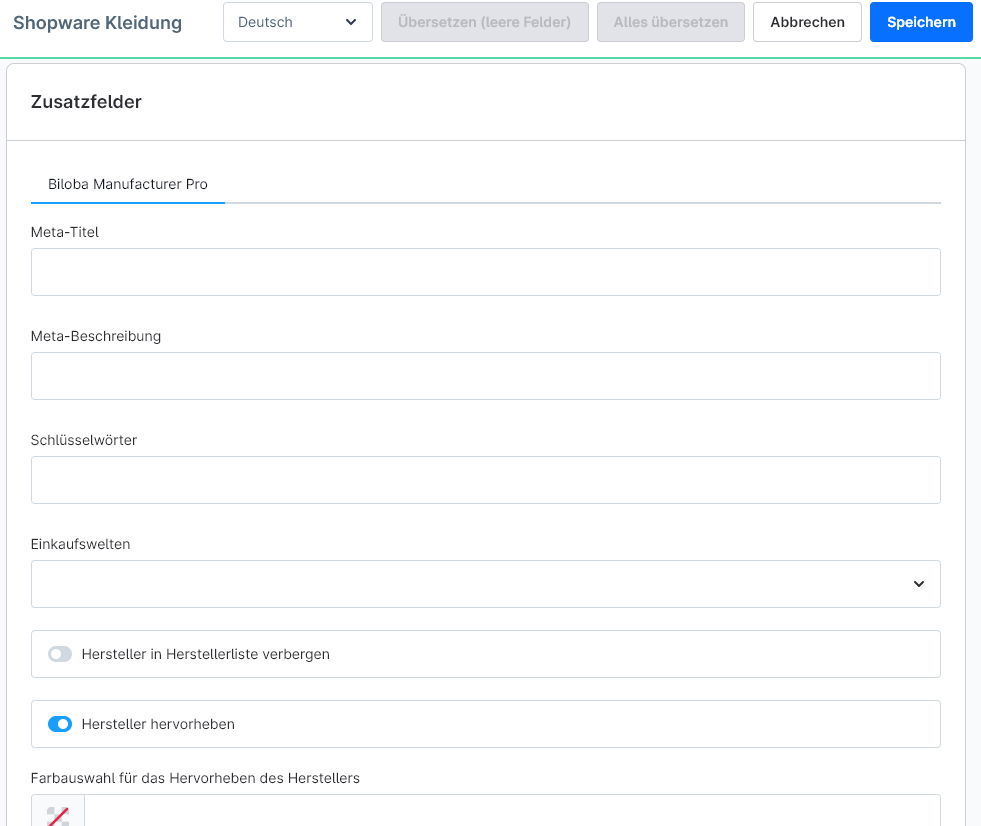
With this extension, each manufacturer is assigned their own additional fields. You can find them under „Catalogues > Manufacturers“: open the manufacturer and, in the „Additional fields“ section, expand the „Biloba Manufacturer Pro“ group. Here, you can specify for each brand where it links to, what its page looks like and how it appears in the manufacturer list.
Where the manufacturer links to
- Manufacturer link destination: „Experience World“ (Standard), „Category“ or „External Link“.
- World of Experiences: This applies if the link target is set to „Experience World“. Here, you can select a specific Experience World for this brand. If the field is left blank, the brand page will use the Experience World set in the manufacturer list or in the extension configuration (see „Designing the brand page“).
- Manufacturer link target category: This applies when the link target is set to „Category“. Clicking on the brand then takes you directly to that category. This is useful if there is already a category for the brand with its own layout, for example as a result of a migration.
- Manufacturer link destination URL: This applies if the link target is set to „External link“. Enter the full address, including https://. The link will open in a new tab.
The link destination applies to all manufacturer links in the extension: in the A–Z list, in the image grids, in the „More items from …“ tab on the product page, and via the manufacturer’s logo in the product page layout. If someone visits the brand page directly, they will also be redirected there via „Category“ or „External Link“. If the category is missing from „Category“ or the address is missing from „External Link“, the user remains on the brand experience page.
SEO for the brand website
- Meta title, meta description and keywords for the brand page.
- Robots: controls how search engines index the page. If left blank, it means „index, follow“.
- Canonical URL: Custom Canonical URL. Leave this blank to use the automatically generated SEO URL.
Listing in the manufacturers’ directory
- Hide manufacturer from the list of manufacturers: hides the brand from the manufacturer lists.
- Highlight manufacturers and Colour selection for highlighting the manufacturer: highlights the brand in the manufacturer lists and displays it in the navigation drop-down menu (see „Displaying the main manufacturers“ above).
Settings in the worlds of experience
Three adventure worlds will be added to the adventure worlds once the extension has been installed:
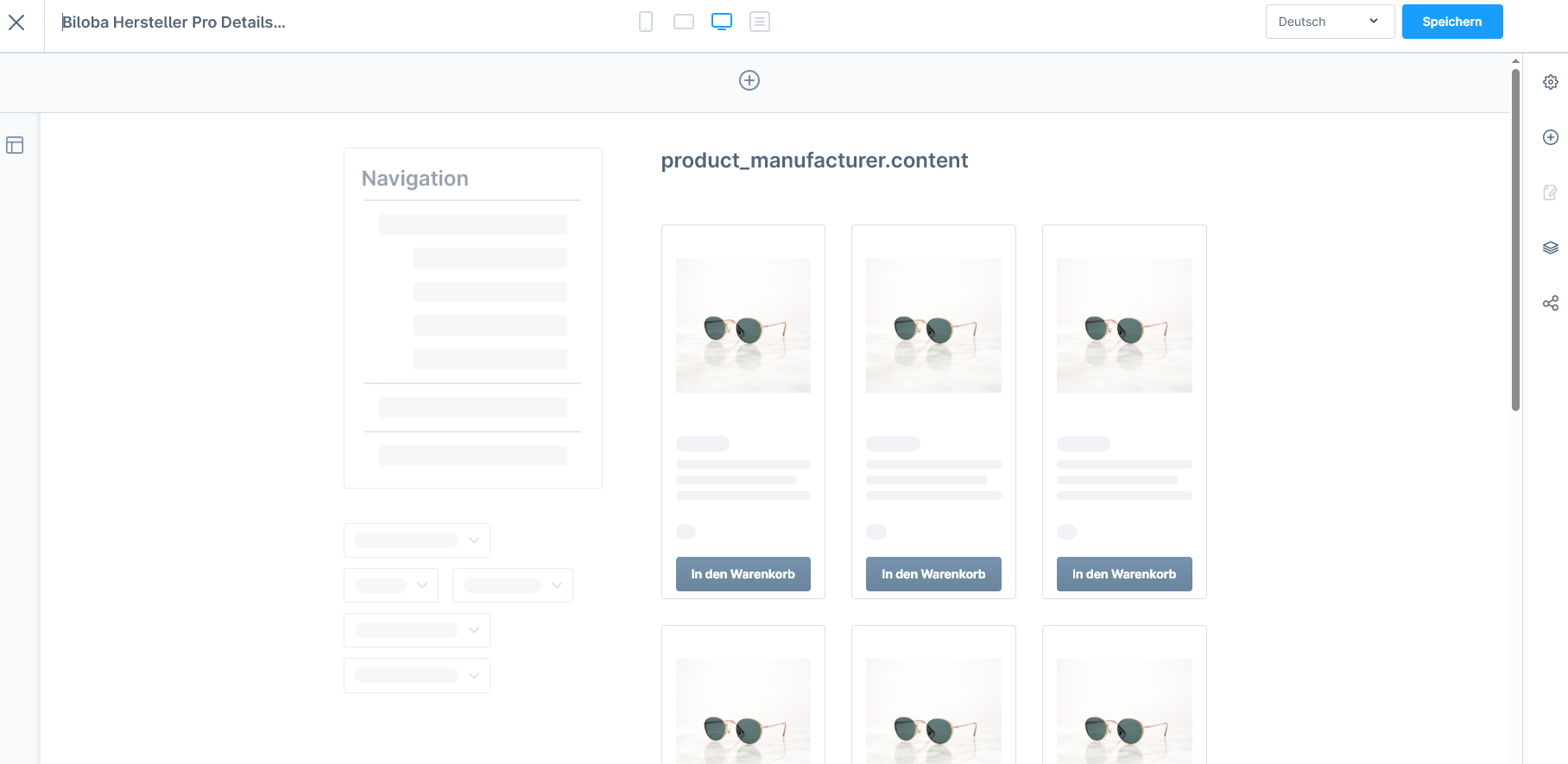
- Biloba Manufacturer Pro detail page - for the manufacturer detail view.
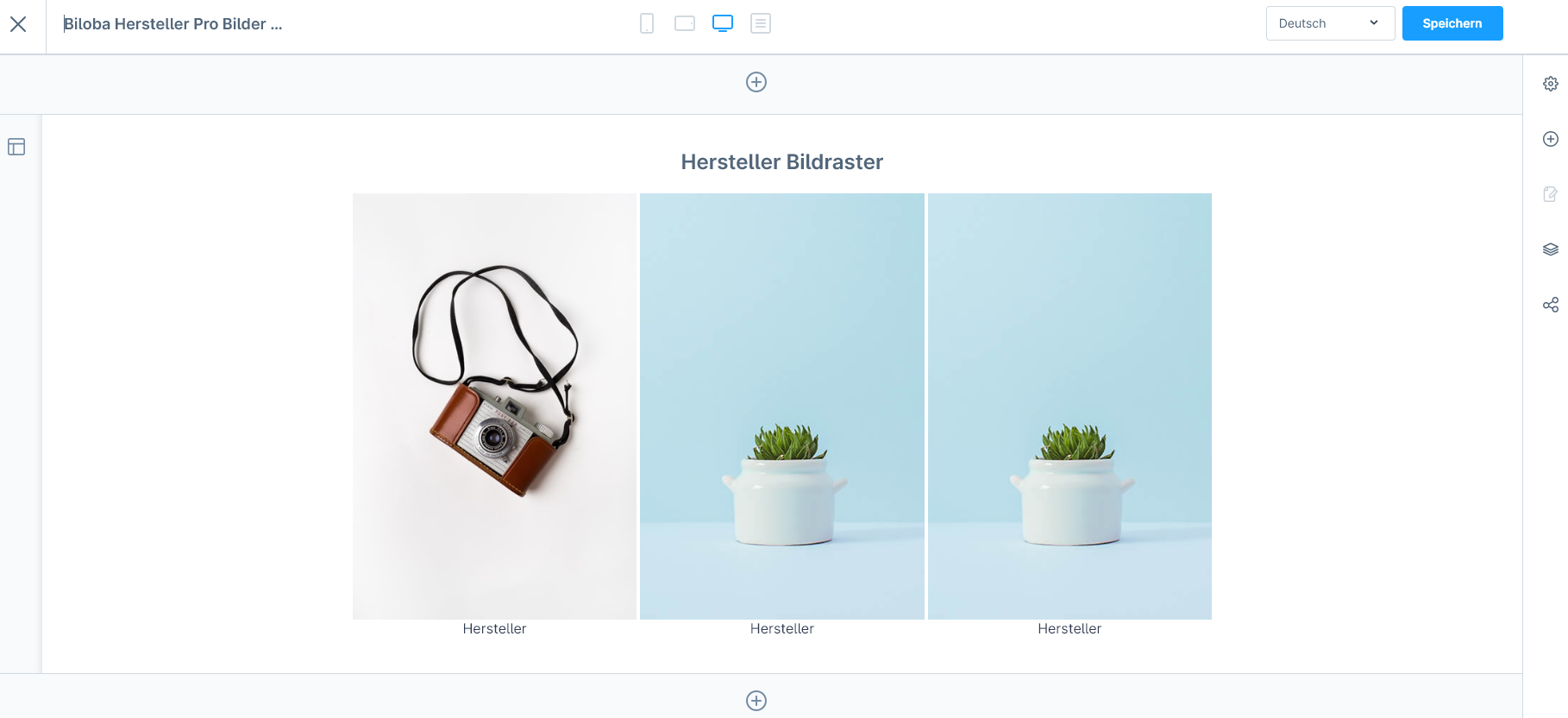
- Biloba Manufacturer Pro image grid - for a display of brands and manufacturers in an image grid.
- Biloba Manufacturer Pro A-Z List - for a display of brand and manufacturer names in an alphabetical list.
Brand overview with logos: Logos only display the image grids (image grids, image grids with selection, image grids with A–Z list). The A–Z list shows only the names. For logos, go to the category in your brand overview under „Catalogues > Categories“ and switch to „Biloba Manufacturer Pro Image Grids“ in the „Layout“ tab. You can manage the logos themselves under „Catalogues > Manufacturers“ for the relevant manufacturer. If you only want the logos to appear without names, tick the „Hide manufacturer name“ box.
Biloba Manufacturer Pro detail page
Biloba Manufacturer Pro Images Grid
Settings for the image grid element
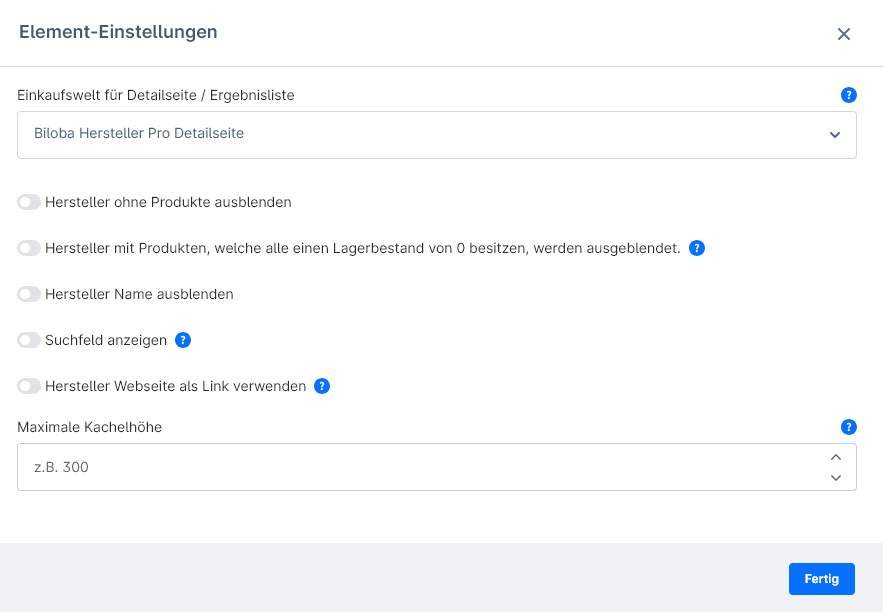
- Shopping world for detail page / result list.
- The detail page / results list for the manufacturer is set here. By default, the extension comes with a detail page world of experience. You can use your own and insert them here.
- Hide manufacturers without products.
- hides manufacturers without products.
- Manufacturers with products that all have a stock level of 0 are hidden.
- To do this, the option “Hide manufacturers without products” must be enabled. This also hides manufacturers who have items but for which the stock level is 0 across the board.
- Hide manufacturer name.
- Hides the names of the manufacturers and brands - only the logos are displayed.
- Show search field.
- Displays a search field that can be used to search for manufacturers and brands.
- Use the manufacturer's website as a link.
- If the “Website” field has been filled in by the manufacturer, this link will be used instead of the details page.
- Maximum tile height.
- specifies a maximum tile height at which the logos are displayed on the grid.
Biloba Manufacturer Pro A-Z List
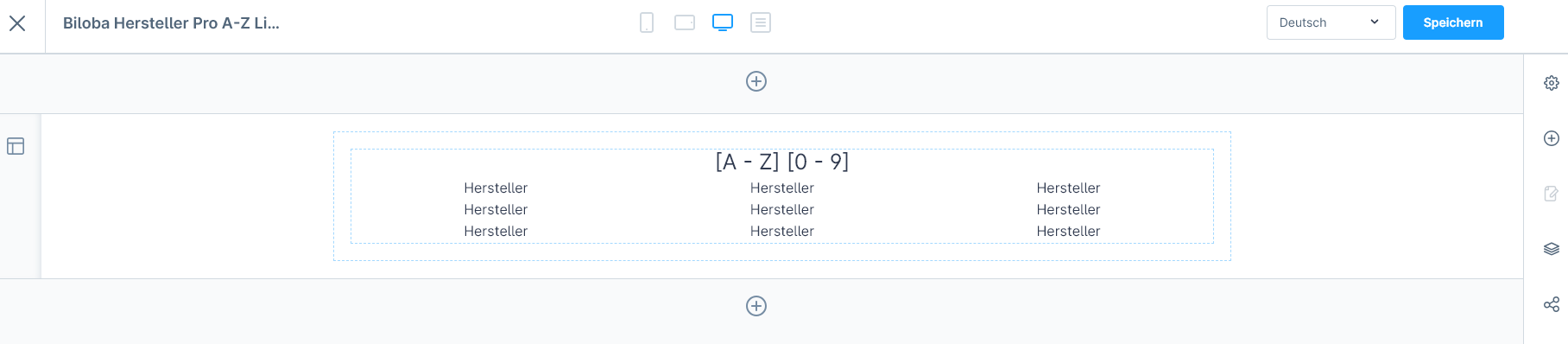
Settings for the A-Z list element
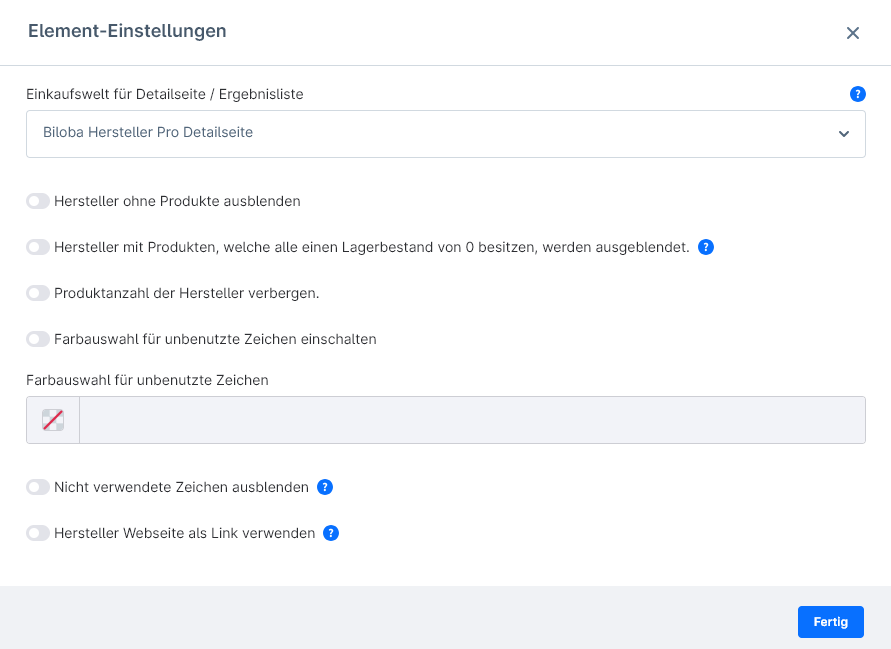
- Shopping world for detail page / result list.
- The detail page / results list for the manufacturer is set here. By default, the extension comes with a detail page world of experience. You can use your own and insert them here.
- Hide manufacturers without products.
- hides manufacturers without products.
- Manufacturers with products that all have a stock level of 0 are hidden.
- To do this, the option “Hide manufacturers without products” must be enabled. This also hides manufacturers who have items but for which the stock level is 0 across the board.
- Hide the number of products from the manufacturer.
- hides the number of products in the list of manufacturers.
- Switch on colour selection for unused characters.
- If there are characters in the A-Z list that do not have a manufacturer, a colour can be set here.


- Hide unused characters.
- Instead of giving the unused characters different colours, they can also be hidden.
- Use the manufacturer's website as a link.
- If the “Website” field has been filled in by the manufacturer, this link will be used instead of the details page.
Manufacturer Product slider
With the new experience world element “Manufacturer Product Slider” you can display a manufacturer's products as a horizontal slider. Ideal for product detail pages to show customers other items from the same manufacturer.
How to add the slider:
Navigate to “Experience Worlds” and add the “Manufacturer Product Slider” block from the ‘Biloba Manufacturer Pro’ category.
Configuration options:
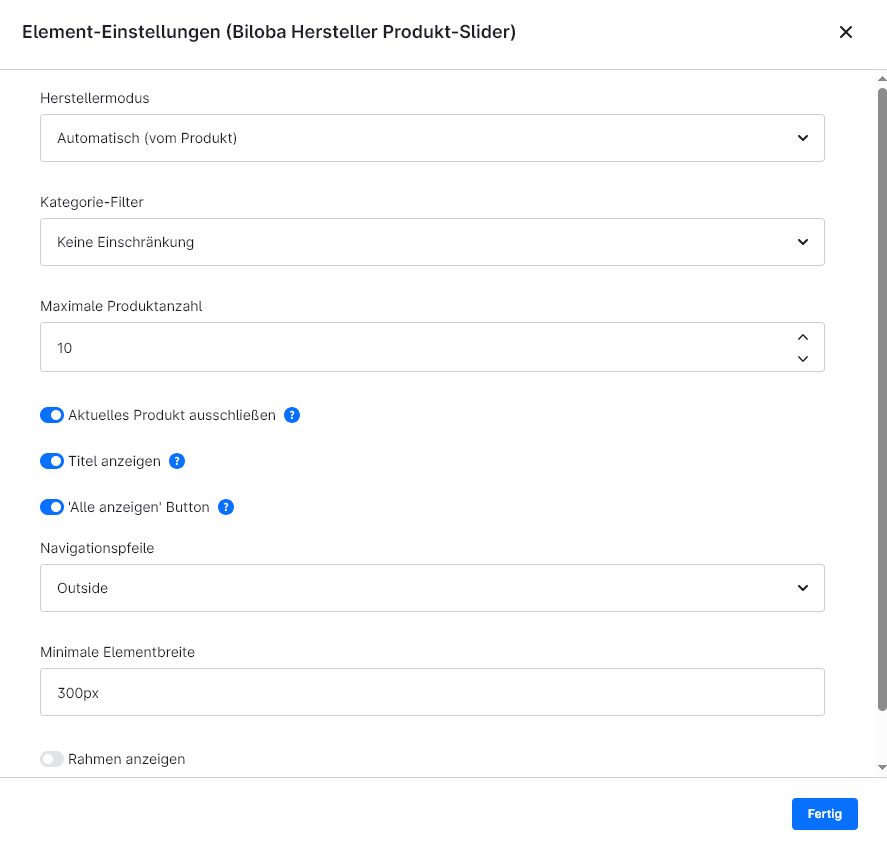
- Manufacturer mode: Automatic (recognises the manufacturer of the current product) or Manual (select manufacturer)
- Category filterNo restriction, Automatic (from product) or Manual (select categories as tree structure)
- Maximum number of products1-50 products (standard: 10)
- Exclude current productHides the currently displayed product in the slider
- Show title: Displays “More products from {manufacturer}” as the heading
- “Show all” button: Linked to the manufacturer page
- Navigation arrowsNone / Inside / Outside
- Minimum element widthWidth of the individual slider tiles
- Frame: Activates/deactivates the card frame
Automatic mode: If the slider is placed on a product detail page and the manufacturer mode is set to “Automatic”, the manufacturer of the current product is used. If the product has no manufacturer, the slider is automatically hidden.
Design a brand page
A brand’s website is a world of experience. The choice of which one to use is determined in the following order:
- If the manufacturer has entered something in the „Experience World“ additional field, that entry applies.
- Otherwise, when you click on an item from a manufacturer list, the „Experience World“ selected in the element under ‘Shopping World for detail page / results list’ applies.
- Otherwise, the „fallback experience“ specified in the extension’s configuration will apply. The default setting is „Biloba Manufacturer Pro Product Page“.
Banners for all brands
Under „Content > Experience Worlds“, open the „Biloba Manufacturer Pro detail page“ and insert an image block with your banner at the top. Then save and clear the cache. The banner will appear on all brand pages that use this experience world. Updates to the extension will not overwrite your changes to this experience world.
Dedicated banners for individual brands
- Under „Content > Experience Worlds“, duplicate the „Biloba Manufacturer Pro Detail Page“ and give the copy a unique name, for example using the brand name.
- Paste the banner and any other content into the copy, then save it.
- Under „Catalogues > Manufacturers“, open the brand and, under „Additional fields > Biloba Manufacturer Pro“, select the copy in the „Experience World“ field. The „Manufacturer link destination“ remains set to „Experience World“.
- Save and clear the cache.
If there is already a category for the brand – for example, one with subcategories – you can instead set the „Manufacturer link target“ to „Category“ and design the layout of that category as usual.
SEO URLs for the brand pages
The address of the brand pages comes from an SEO template in the extension. You can find it under „Settings > Shop > SEO“ in the „Manufacturer product overview“ entry (technically, the route frontend.biloba_product_manufacturer). The default setting is:
{{ product_manufacturer.translated.name|replace({".": "-"}) }}This means that the address adopts the spelling of the manufacturer’s name; for example, „Dr. Scheller“ becomes /Dr Scheller. If you want the addresses to be in lower case, add the filter lower:
{{ product_manufacturer.translated.name|lower|replace({".": "-"}) }}Save the template and then rebuild the SEO index under „Settings > System > Caches & Indexes“. Then clear the cache.
Important: Amending a template changes the URLs of all brand pages. To ensure that old links continue to work, you can enable the Shopware setting „Instead of using canonical URLs, redirect to the most recent URL via HTTP 301“ on the same page.
Import/Export for Manufacturers
From version 5.6.0 onwards, the extension includes its own import/export profile „Biloba Manufacturer Pro“ This allows you to easily maintain manufacturer master data and all additional extension fields via CSV. This is useful when you need to update a large number of manufacturers at once.
Here’s how to find the profile:
In the admin panel, go to „Settings > System > Import/Export > Profiles“. The „Biloba Hersteller Pro“ profile is already set up (entity: product_manufacturer) and can be used directly for export and import.
Columns in the CSV file:
id: Manufacturer ID (for updates to existing manufacturers)name,link,description: Standard manufacturer master datamedia_id,media_url: Manufacturer’s logoMeta Title,MetaDescription,MetaKeywords,RobotsTag,Canonical URL: Additional SEO fieldsShoppingExperienceId: an interconnected world of experiencesHideInManufacturerList,Highlighted,Highlight Colour: Visibility and prominence in the list of manufacturersLinkTargetType,LinkTargetCategoryId,LinkTargetUrl: the manufacturer’s alternative link destination
To export for the first time, simply select the profile and click „Export“. The CSV file generated will show all columns, including the current values, and can be used as a template for importing.
FAQs
Support
If you have any questions or problems, please do not hesitate to contact us:
- Support request: biloba-it.de/shopware-extension-support
- e-mail: support@biloba-it.de
- Phone: +49 (0) 711 - 13633800
 German
 English