
Don’t miss out on any new features
Extension news, updates and practical Shopware tips. Once a month.
Wingman: Your shop on your mobile
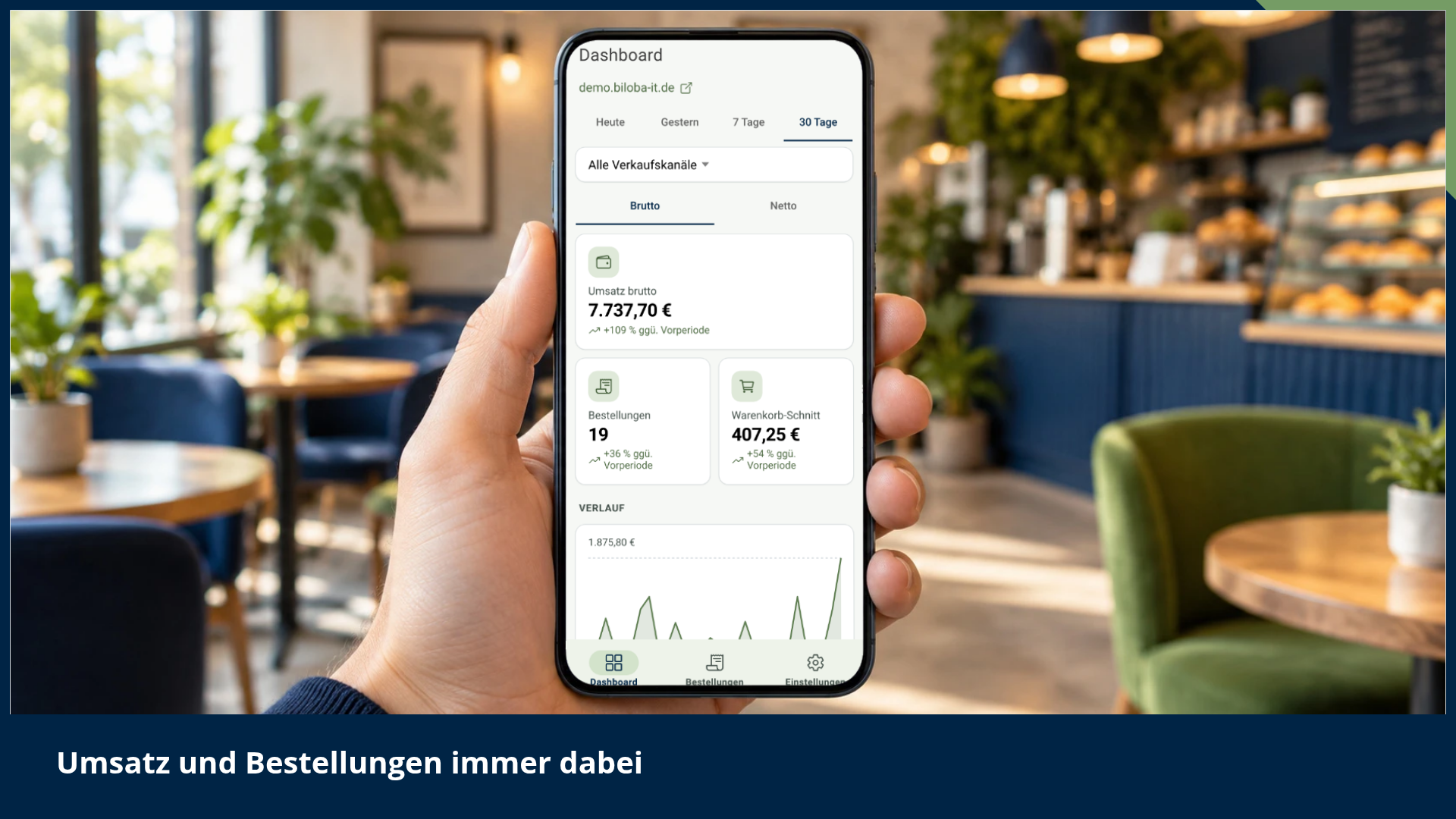
With Wingman, you always have your Webshop with you. The web app shows you sales and orders on your phone and sends you a push notification with every new order. You don't have to install anything from an app store: Wingman runs in the browser and can be placed on your home screen.
- Dashboard: Gross or net sales, number of orders, cart size and top 5 items for today, yesterday, 7 or 30 days, on request per sales channel.
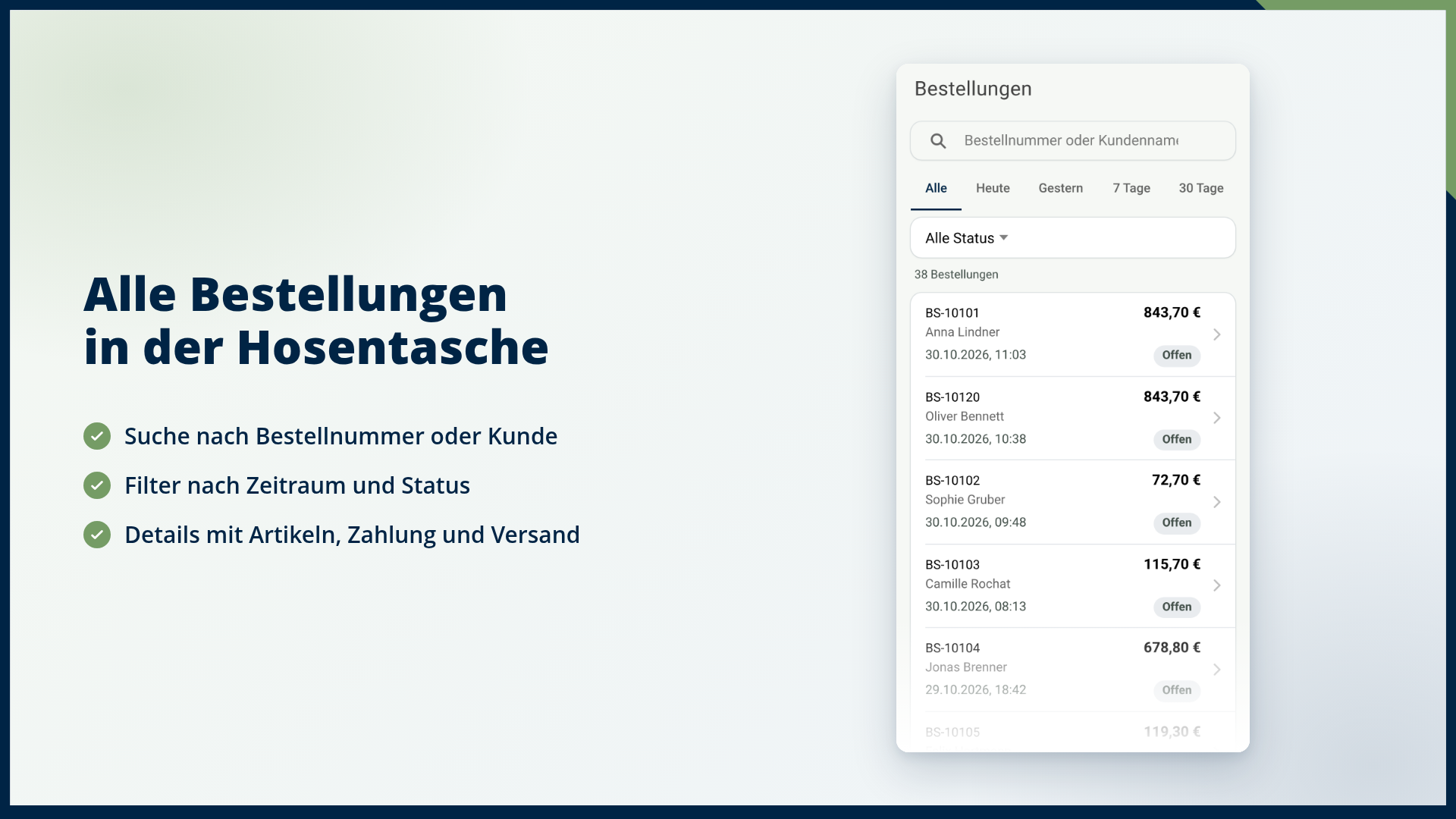
- Orders: List with search by order number or customer name, and filters by time period and order status, plus detailed view of each order.
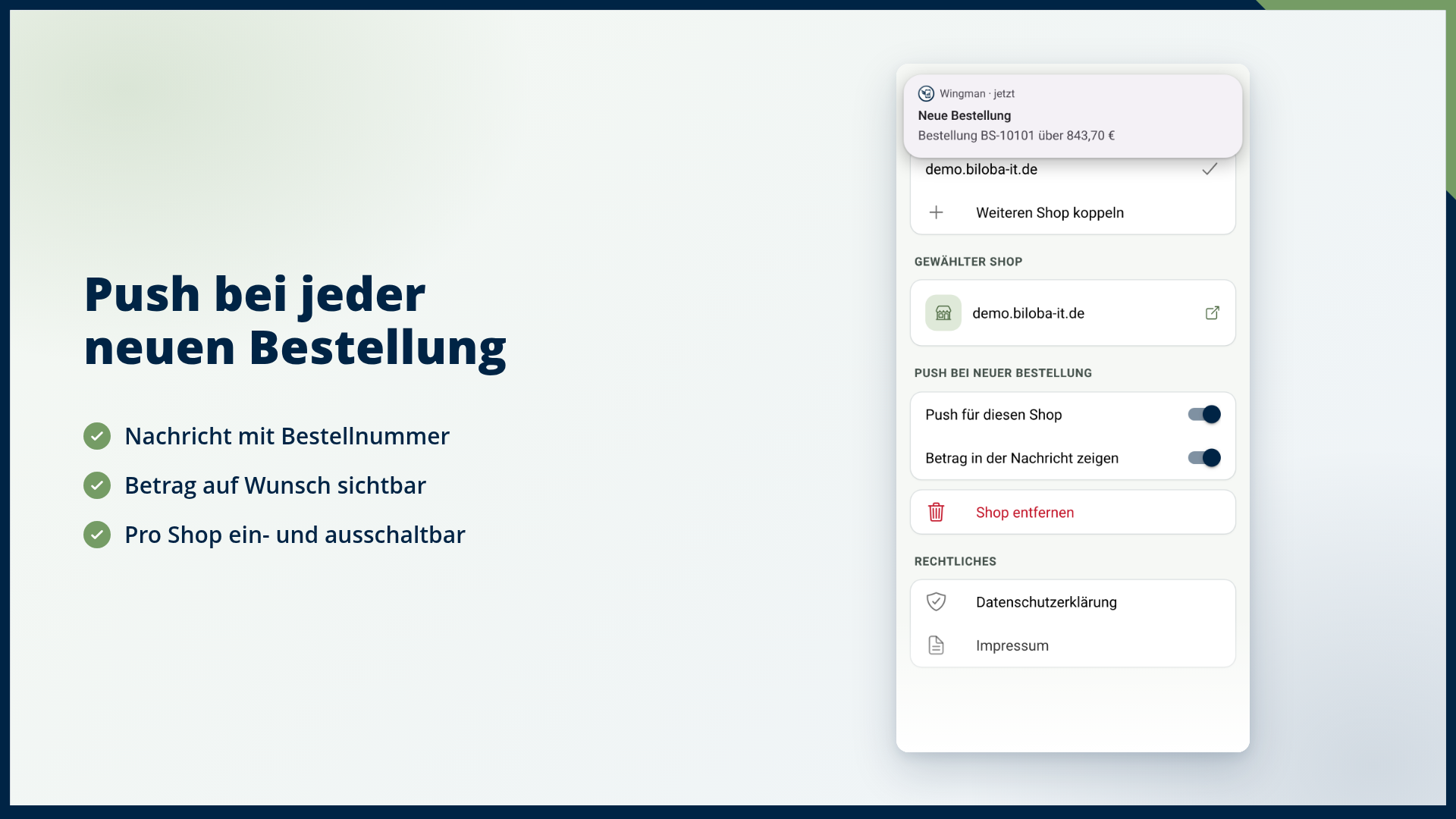
- Push message with every new order, if desired, with the order amount.
- Several shops can be switched individually in an app, push notification for each shop and device.
- Just reading: Wingman does not change anything about your orders.
Prerequisites
- Shopware 6.6 or 6.7
- A mobile phone or computer with a current browser (Android: e.g. Chrome, iPhone: Safari)
- On the iPhone, Wingman must be located on the home screen; otherwise there are no push notifications.
- An admin user with the right for the app Wingman (see „Rights and visibility“)
Compatibility
Wingman is an app for Shopware 6.6 and 6.7. It reads order, position, customer and address data, shipping and payment methods, status, sales channels and currencies. It does not require write permissions.
Installation
- Purchase Wingman in the Shopware Store.
- Open in the Shopware admin Extensions > My extensions.
- Install and activate Wingman.
- Reload the admin (F5). After that, open Wingman via Extensions > My Extensions > Wingman.
1 · Connect device
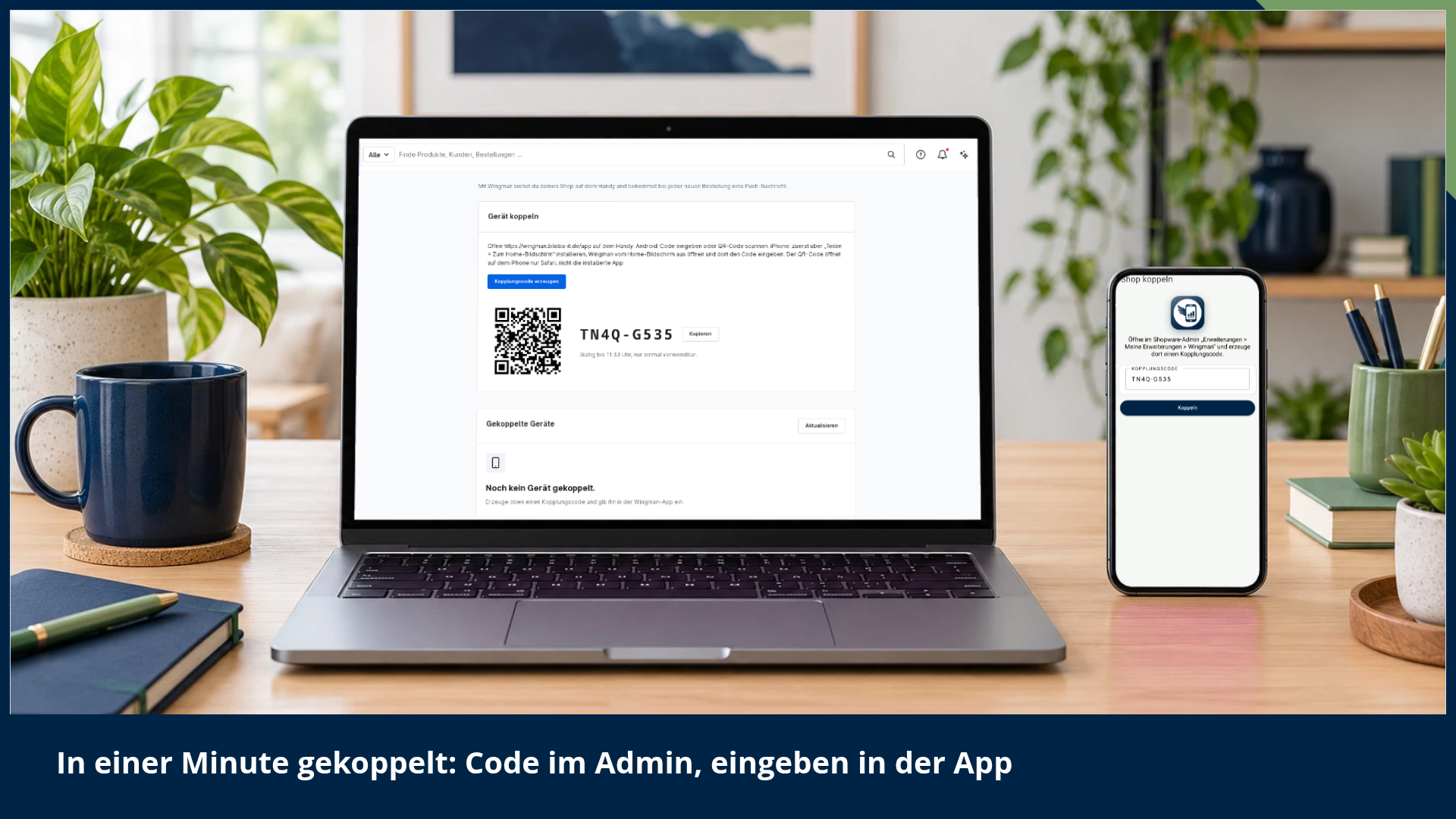
To let the app know which shop belongs to you, you need to pair your device with the shop once. To do this, you create a pairing code in the admin.
- Open the Wingman module in the admin and click on Generate pairing code. You will receive an 8-digit code and a QR code. The code is only valid once and expires after a short time; the time is shown below.
- Android: Scan the QR code or open wingman.biloba-it.de/app on the phone and enter the code. Tap Pairing.
- iPhone: Open wingman.biloba-it.de/app In Safari, tap „Share“ and then „To Home Screen“. Open Wingman from the Home screen and enter the code there. The QR code only opens Safari on the iPhone, not the installed app. Pairing in Safari does not work in the app on the Home screen.
- Computers: Wingman also runs in the desktop browser. Open wingman.biloba-it.de/app and enter the code.
2 · Push messages are allowed
After pairing, your device asks if Wingman should send notifications. Allow it, and you’ll receive a „New Order“ message with the order number each time you place a new order. If you reject the request, you can change it in your device’s settings.
3 · Dashboard and orders
At the bottom of the app, you can switch between Dashboard, Orders and Settings.
- Dashboard: Select period, sales channel and price display (gross or net). You can see revenue, orders and cart breakdown compared to the previous period, the trend as a graph and the top 5 items.
- Orders: Search for the order number or customer name and filter by time period and order status.
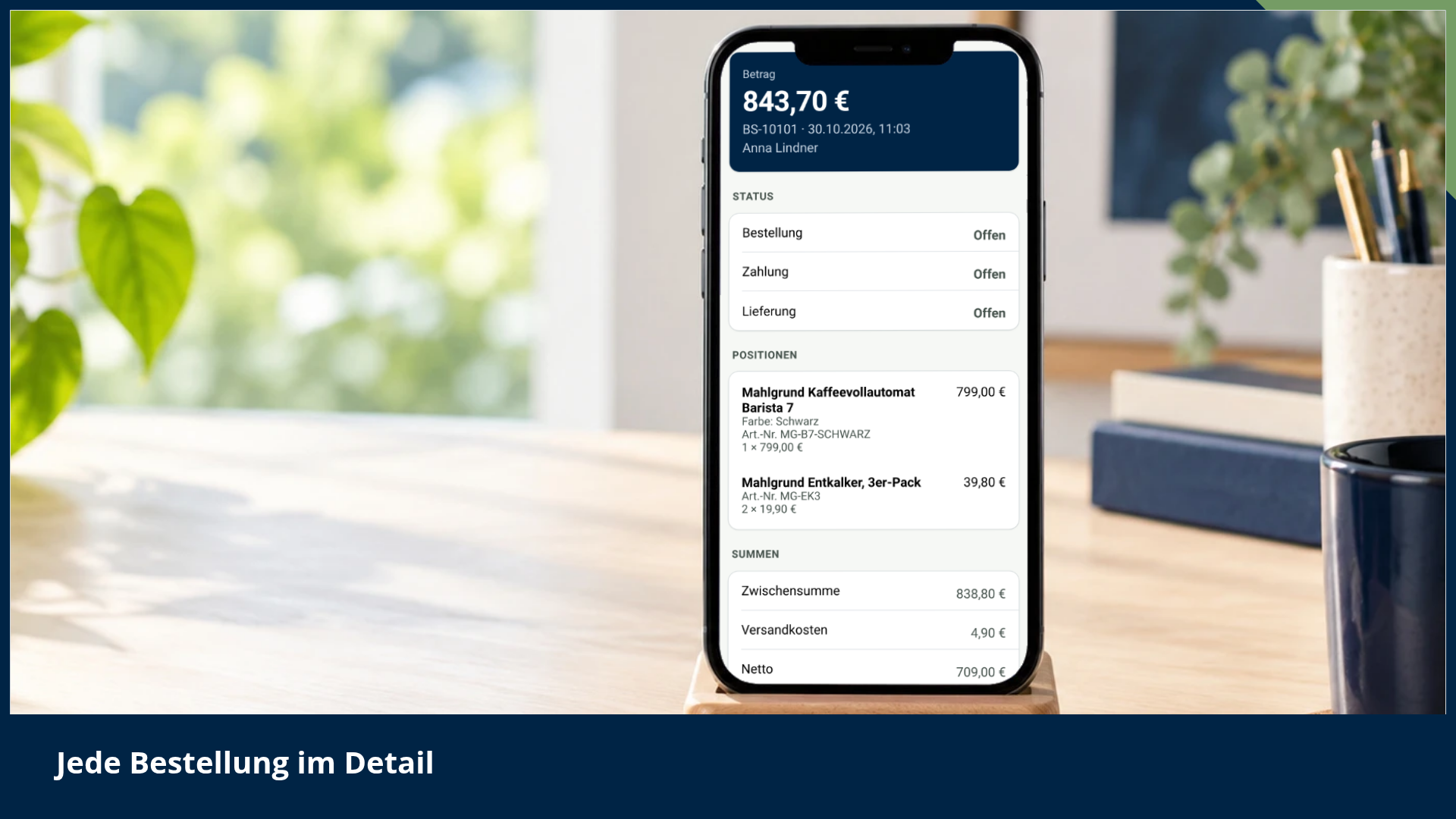
- Order details: Click on an order to see the status of the order, payment and delivery, items, amounts, payment and shipping method, shipment number, and billing and delivery address.
4 · Settings in the app
Under Settings Do you ever specify which device Wingman notifies you about:
- Push for this shop: turns the push notifications for the selected shop on or off.
- Show amount in message: displays or hides the order amount in the push notification.
- Link other shops: You can use multiple shops in one app. Each shop needs its own pairing code from its admin.
- Remove shop: removes a shop from the app.
5 · Manage devices in Admin
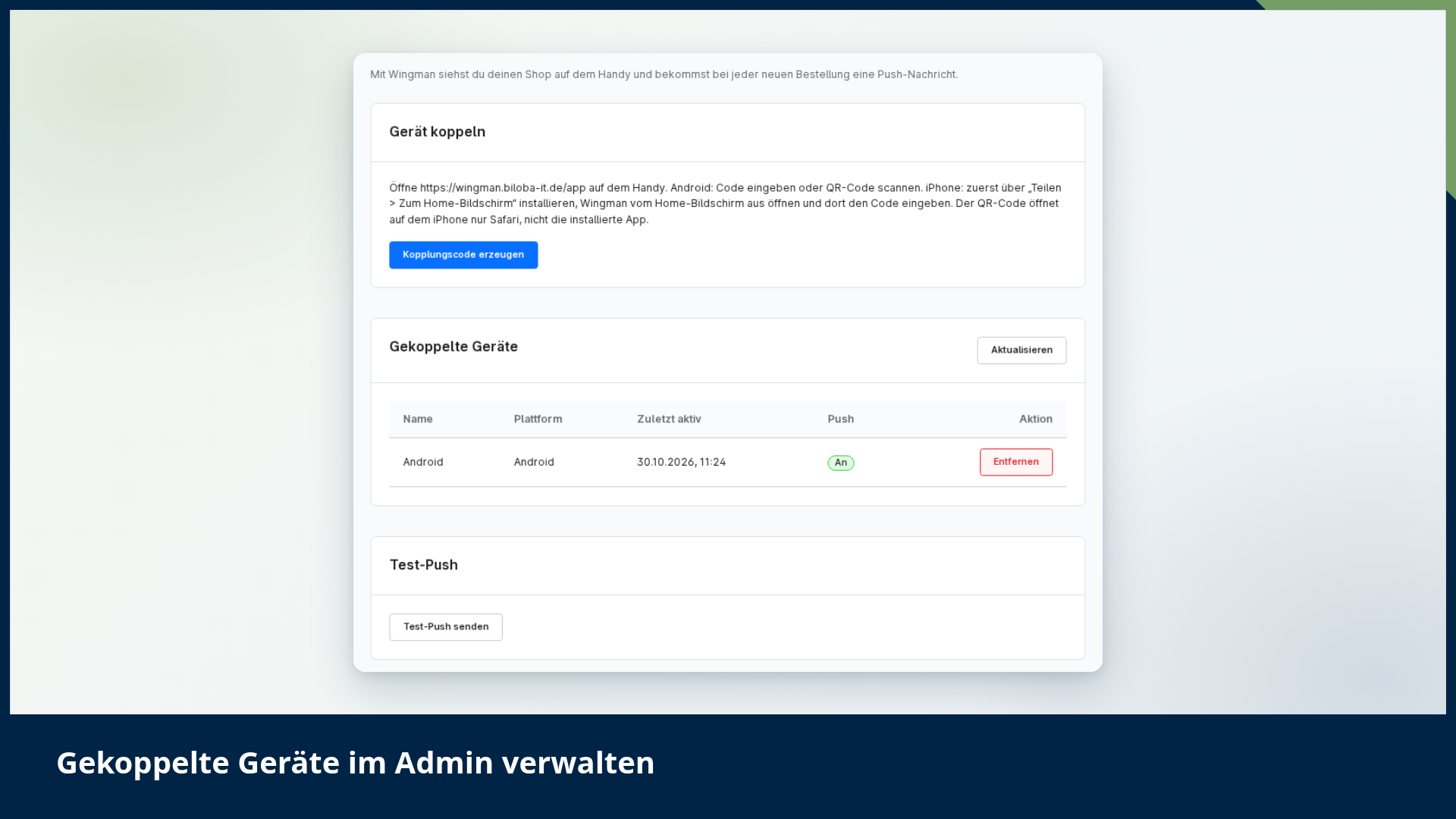
In the Wingman module you see under Connected devices All devices with platform, last activity and push status. With Remove You take access away from a device. It will no longer receive push notifications and will show the pairing again. With Send test push You check to see if the messages are arriving on your devices.
Rights and visibility
Only admin users who have the right to the Wingman app can see the Wingman module. You can set this in the user role. Settings > System > Users & Rights One. Administrators with all rights always see it.
Important: A paired device sees all the orders from the shop. This applies regardless of what order rights the user who paired the device has. So, anyone who gets the Wingman feature can see orders on their phone.
FAQs
Support
If you have any questions or problems, please do not hesitate to contact us:
- Support request: biloba-it.de/shopware-extension-support
- e-mail: support@biloba-it.de
- Phone: +49 (0) 711 - 13633800
 German
 English