
Don’t miss out on any new features
Plugin news, updates and practical Shopware tips. Once a month.
Microsoft Advertising (Bing) UET tag
The Microsoft Advertising (Bing) UET tag allows you to seamlessly integrate Microsoft Advertising’s Universal Event Tracking (UET) – formerly Bing Ads – into your Shopware shop. The plugin transmits the most important shop events to Microsoft Advertising, thereby enabling conversion tracking and dynamic remarketing – in compliance with data protection regulations and only after cookie consent has been given.
- Client-side integration of the UET tag – without any server or token configuration
- Conversion tracking for completed orders, including turnover and currency
- Dynamic remarketing events for the homepage, products, categories, search, shopping basket and purchase
- Cookie consent integration with Shopware Manager and seven external consent tools
- A unique UET tag ID for each sales channel and the targeted exclusion of individual customer groups
Prerequisites
- An active Microsoft Advertising account with a UET tag ID set up
- Shopware 6.7
- An active cookie consent manager (Shopware’s standard option or a supported external tool) to ensure the tag is loaded in compliance with the law
Compatibility
The plugin is compatible with Shopware 6.7. It operates entirely on the client side using the official UET tag (bat.bing.com) and does not require any additional third-party plugins.
Installation
- Purchase the plugin from the Shopware Store and install it in your shop.
- Plugin at Extensions activate.
- Open the configuration and enter the UET tag ID (see „Set-up“).
- Clear the Storefront cache or reload the page so that the tag is displayed.
Furnishings
Open the plugin configuration at Extensions › My extensions under the entry „Microsoft Advertising (Bing) UET tag“ via the three-dot menu › Configuration. Select the desired sales channel from the list above and configure the following settings:
- Active: Enables the tag for the selected sales channel.
- UET Tag ID: Your UET tag ID from Microsoft Advertising (e.g. 12345678). You can find it in Microsoft Advertising under Tools › Conversion Tracking › UET tag.
- Override currency: Optional. Leave blank to use the sales channel’s currency, or specify a fixed currency (e.g. EUR).
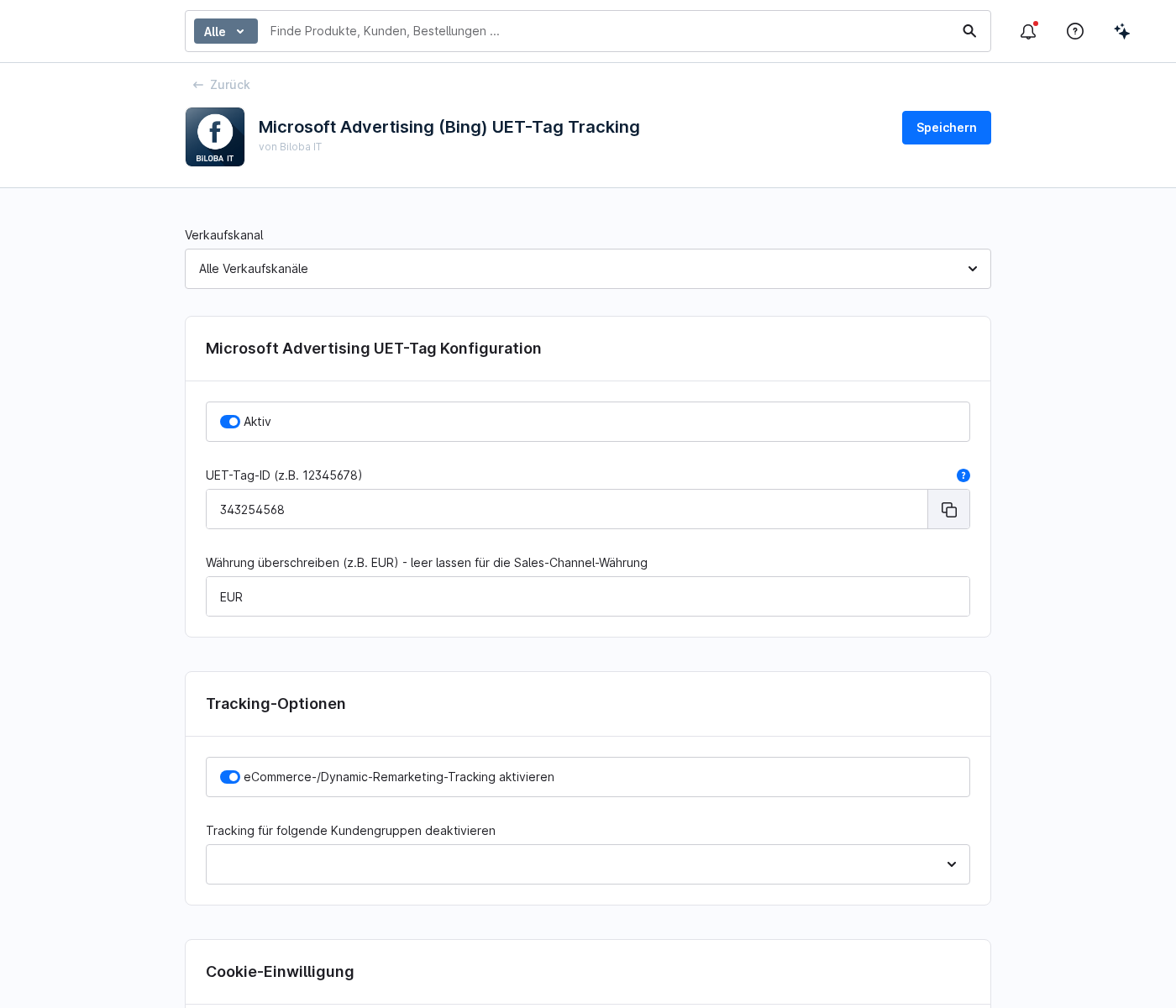
1 · Conversion tracking & dynamic remarketing
If the tag is active and consent has been given, the plugin automatically records the key events in the purchase process and reports them to Microsoft Advertising:
- Home page: Page views for building remarketing lists
- Product view: including product number
- Category and list pages: for category-based remarketing
- Search: using the search term you entered
- Shopping basket: Go to the shopping basket page
- Purchase: Completed order with turnover and currency
e-commerce/dynamic remarketing tracking can be enabled or disabled separately in the tracking options.
2 · Cookie Consent & Data Protection
The UET tag is only loaded once the visitor has consented to the „Marketing“ category. If consent is withdrawn, tracking stops and the UET cookies that have been set are automatically deleted.
The Shopware Cookie Consent Manager and seven external consent tools are supported:
- Cookie Bot
- CookieFirst
- UserCentrics
- ACRIS EU Cookie Policy Pro
- CCM19
- CMP
- CookieYes
For custom setups, you can freely define the data attribute used to suppress the UET script in the „Expert mode for the selected consent manager“ field (e.g. the marketing attribute of your CMP).
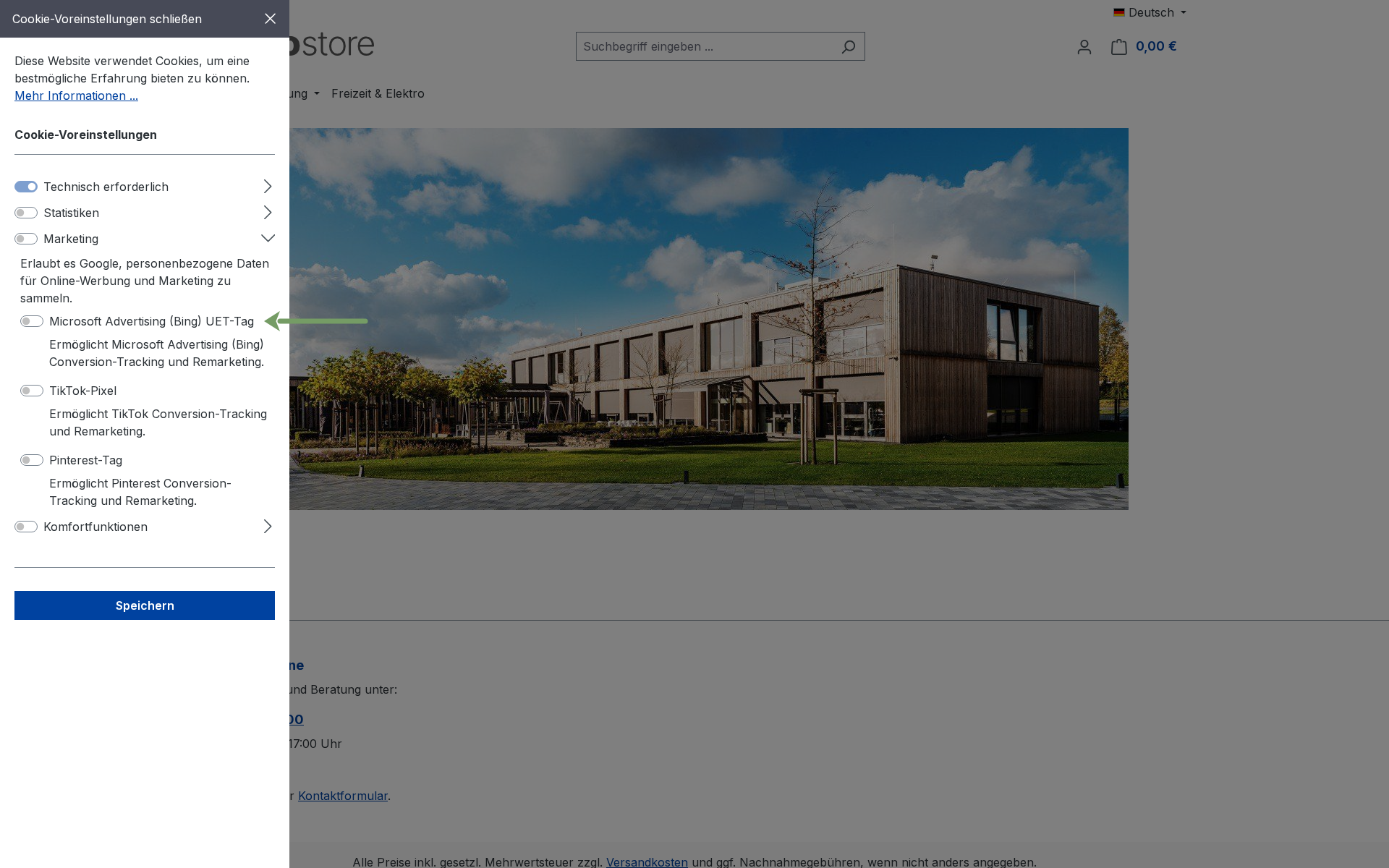
3 · Multiple sales channels & other options
- Multiple sales channels: Select the relevant sales channel at the top of the configuration and enter a separate UET tag ID for each channel.
- Currency: Either automatically use the sales channel’s currency or specify a fixed currency.
- Exclude customer groups: Under „Disable tracking for the following customer groups“, you can exclude individual customer groups (e.g. retailers or internal groups) from tracking.
- 24 languages: Administration and storefront texts are available in 24 languages.
FAQs
Support
If you have any questions or problems, please do not hesitate to contact us:
- Support request: biloba-it.de/shopware-plugin-support
- e-mail: support@biloba-it.de
- Phone: +49 (0) 711 - 13633800
No solution found?
Describe your problem to us - we'll take a look at it and get back to you as soon as possible.
 German
  English