
Don’t miss out on any new features
Plugin news, updates and practical Shopware tips. Once a month.
What is Biloba Notificator?
The plugin automatically monitors your Shopware shop in the background and notifies you by email of any errors from the system log and your shop’s log files before they affect your customers. You can specify the threshold at which a notification is triggered, who receives it and the maximum frequency of emails.
The key benefits at a glance:
- Automatic monitoring of the system log at fixed intervals
- Errors from the shop’s log files, e.g. from PayPal, Mollie or PHP, grouped by number
- Configurable thresholds (e.g. from „error” or „critical” level)
- Multiple recipients per alert
- A cooldown to combat the flood of emails; any errors occurring during the cooldown will be collected and submitted at a later date
- Customised email templates and multilingual mailings
- Test email per recipient without a cooldown period
- Deliberately hide familiar, harmless notifications; the alert email states the number
- Role-based permissions and automatic masking of sensitive data in logs and alert emails
- All alarm settings can also be configured via the Admin API, e.g. for setting them up via a script
- A complete log of all alarms triggered in your local time zone
Prerequisites
- Shopware 6.5, 6.6 or 6.7
- PHP from 8.1 in Shopware 6.5, from 8 February for Shopware 6.6 and 6.7 (as specified by Shopware itself)
- Configured Symfony Mailer (
MAILER_URLor.MAILER_DSN) for sending emails - Current Messenger Worker for automatic execution in the background
Compatibility
- Shopware versions 6.5.x, 6.6.x and 6.7.x
- Monitors Shopware’s own
log_entry-the table and the log files invar/log, creates its own tables for this purpose (biloba_notification,biloba_notification_log) - No dependencies on third-party plugins
Installation
- Purchase the expansion in the Shopware Store
- Install and activate the extension in the Shopware backend under Settings → Extensions → My Extensions
- Reload the admin interface (F5)
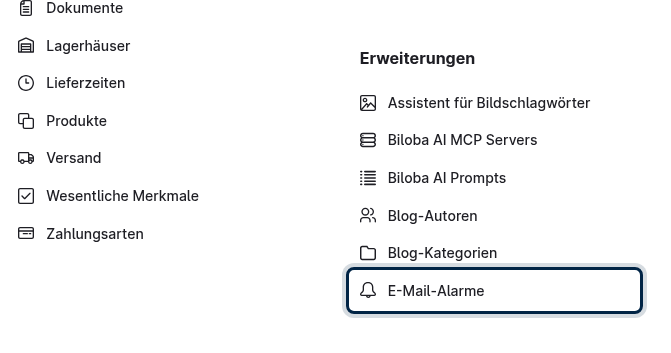
- Go to the new menu option under Settings → Extensions → Email Alerts
Furnishings
Once you’ve activated the service, set up your first email alert. You can adjust all the settings at any time in the details form.
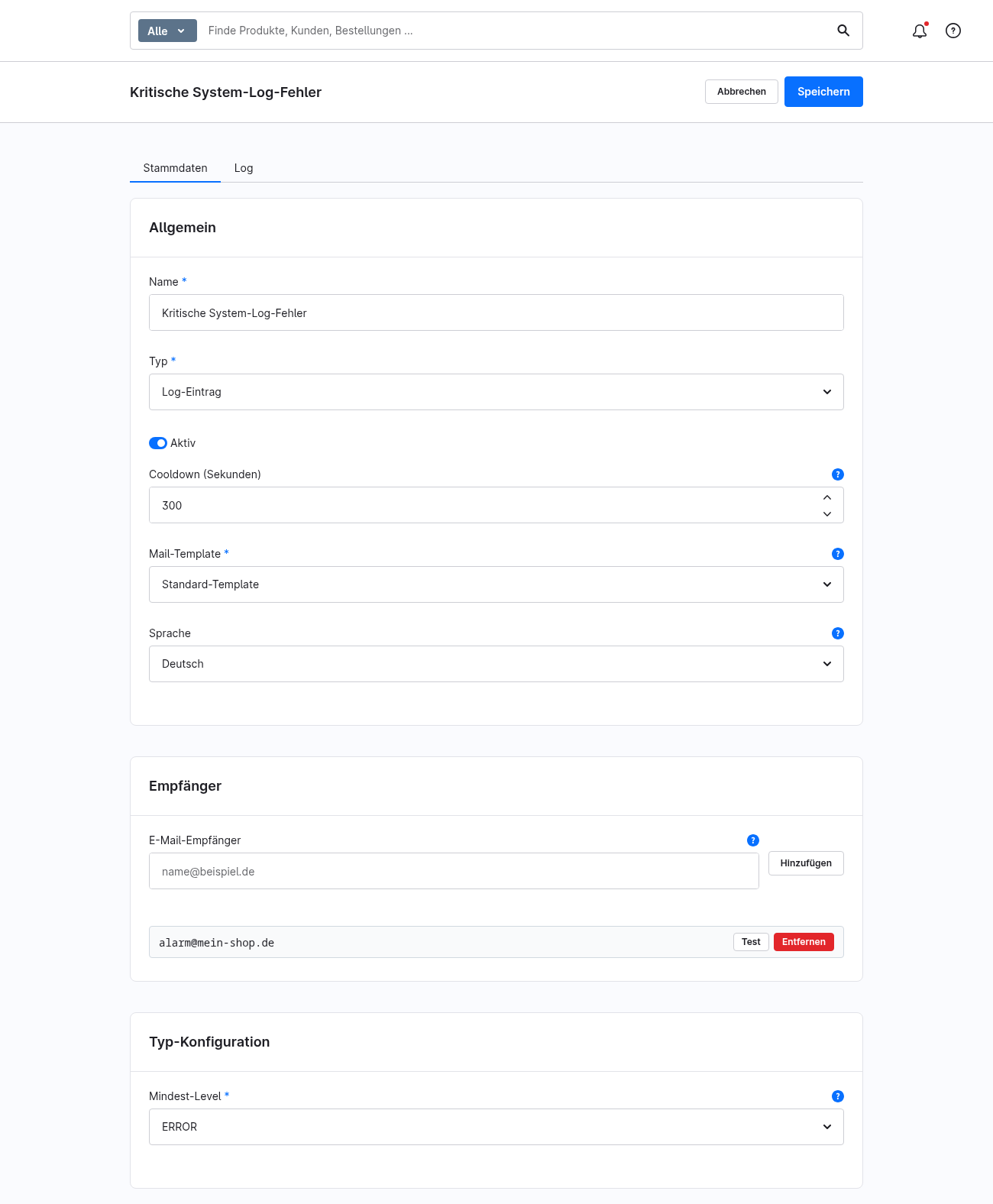
- In the backend, under Settings → Extensions → Email Alerts, click on „Add”
- Enter a name, e.g. „Error alert”
- Select the alarm type: „Log entry” for the log table or „Errors from log files” for the shop’s log files (see Section 3)
- Set the minimum log level (e.g.
error,critical,alert) - Enter one or more recipient email addresses
- Set a cooldown period in seconds to prevent spam (e.g. 300 seconds)
- Select an email template and the language in which the emails are to be sent
- Save the alarm
To ensure that alerts are automatically checked and sent, the Symfony Messenger worker must be running (e.g. continuously as a Systemd service with bin/console messenger:consume). In the development environment, a manual call via bin/console scheduled-task:run.
1 · Alarm management
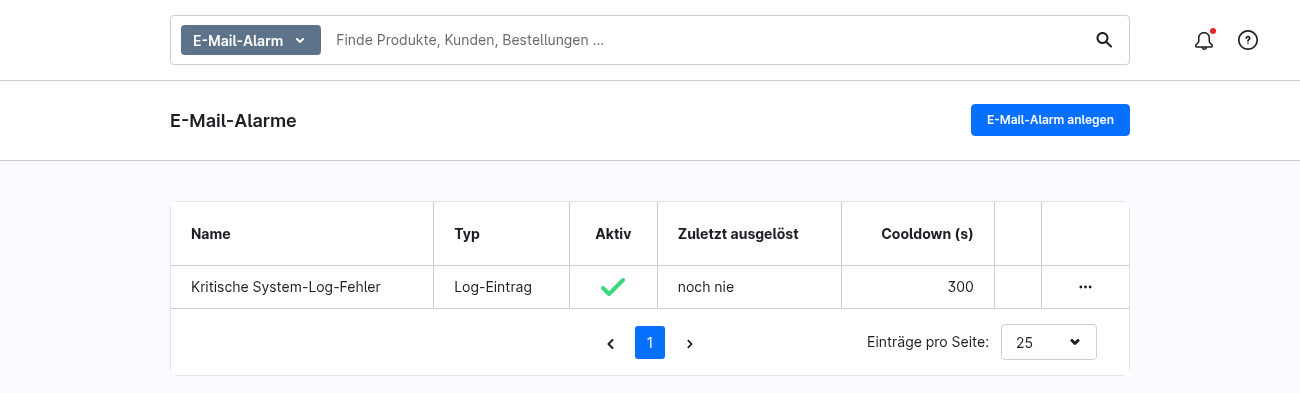
In the list view, you can see all the alerts you have created, along with their status (active/inactive). In the details view, you can edit an alert’s name, type, recipient, cooldown, email template and language.
2 · Log monitoring (log entry)
The „Log entry” alert type monitors your shop’s system log table and triggers as soon as entries with the configured minimum level (e.g. error) occur. However, Shopware only logs some of these errors in this table. For all others, the alert type is „Errors from log files”.
3 · Errors from log files
Many errors do not appear in the log table, but only in your shop’s log files in the folder var/log. These include, for example, errors from payment providers such as PayPal or Mollie, request errors and PHP errors. The „Errors from log files” alert type reads these files and notifies you by email of new entries from the set minimum level upwards.
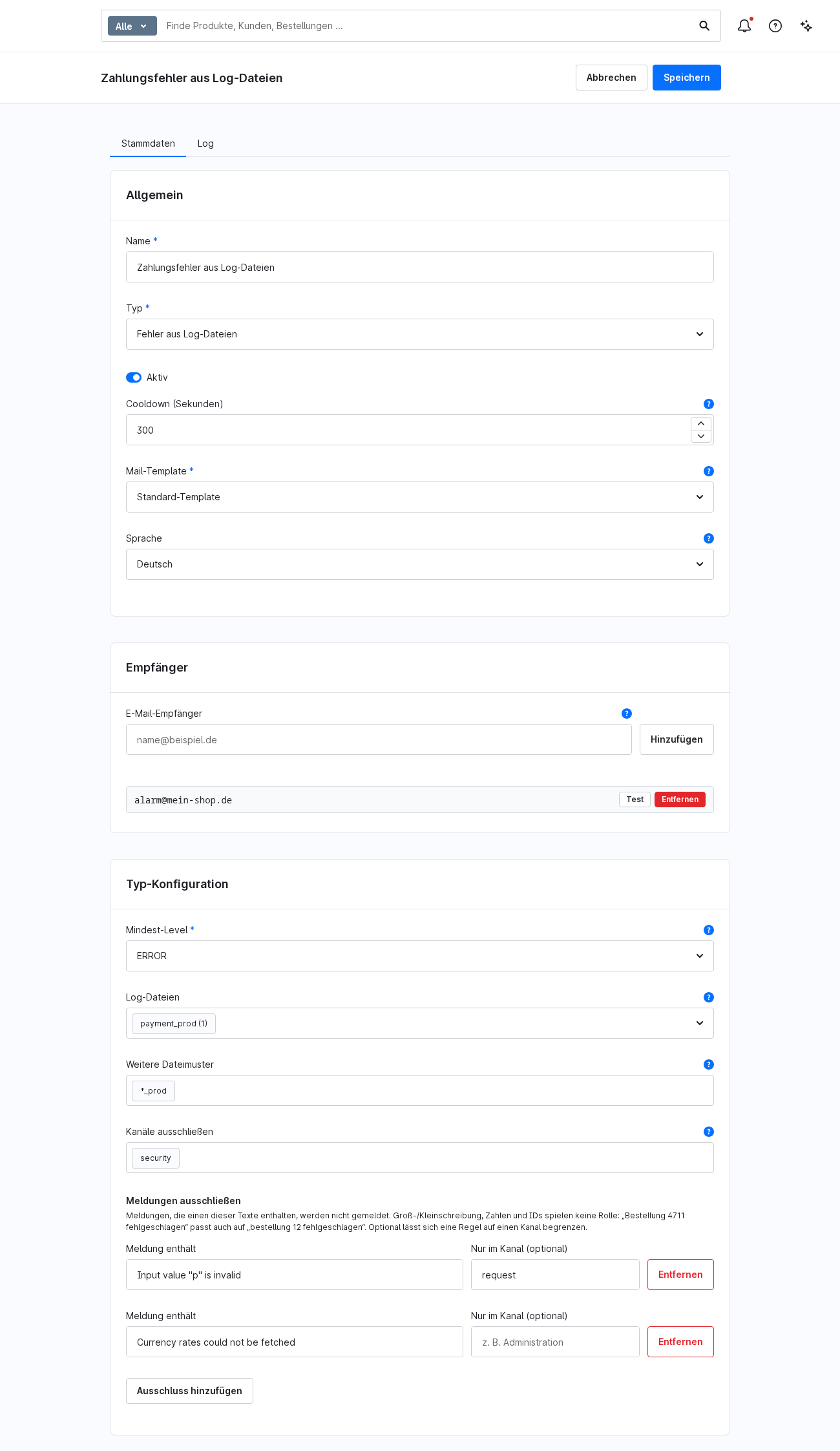
You have the following settings for the „Error from log files” alert type:
- Log files: Select one or more groups, e.g.
prod. A group comprises all daily files, that is to sayprod-2026-10-13.log,prod-2026-10-14.logetc. - Further file examples: You can optionally specify patterns for group names, e.g.
*_prod. Confirm each pattern by pressing the Enter key. - Exclude channels: Reports from individual channels, e.g.
security, you’ll block it out. - Exclude notifications: You can deliberately hide familiar, harmless notifications (see section 4).
- Minimum level: As with the log entry, e.g.
error.
At least one log file or file pattern is required; there is no preselection. The system only reads from the shop’s log folder.
The email contains only the error message text, without a stack trace or contextual data. Email addresses, IP addresses and login details are masked. Identical messages are grouped together and displayed with the number of occurrences and the first and last instances; a maximum of 25 different messages per email.
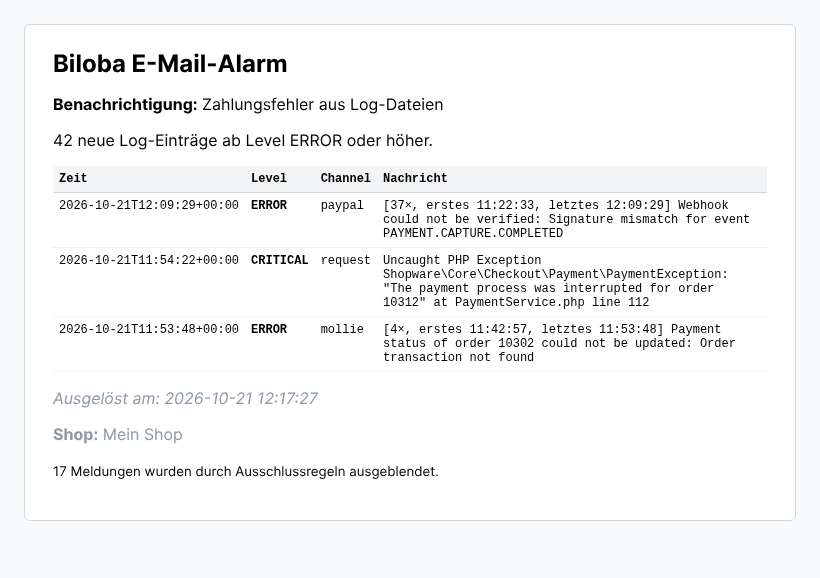
An error is reported approximately 2 to 3 minutes after it occurs, because Shopware only writes some entries to the file at the end of a request. If the extension cannot find any log files – for example, if the hosting provider does not have a log folder – the admin panel displays a message and no emails are sent.
This alarm type is available from version 7.1.0 (Shopware 6.7), 6.1.0 (Shopware 6.6) and 5.1.0 (Shopware 6.5) onwards.
4 · Exclude notifications
Some notifications are familiar and harmless, but keep cropping up. To prevent them from triggering an alert email and to ensure that genuine errors do not get lost amongst them, you can specifically suppress them. This works for both types of alert.
- The message contains: Enter text from the notification. Upper and lower case letters, numbers and IDs do not matter: „Order 4711 failed“ will also hide „order 12 failed“. You can create further rules by clicking „Add exclusion“.
- In the channel only (optional): If you enter a channel, e.g.
request, the rule applies only to messages from this channel. If no channel is specified, it applies to all channels. - Exclude channels: Hides all messages from a channel, e.g.
security. This applies to both types of alert, including the „log entry“.
An example: The rule „Message contains“ The input value "p" is invalid with „Only on the channel“ request hides this particular message. All other errors from the channel request are still arriving.
The text of a rule must be between 3 and 255 characters long and contain at least one letter, to ensure that a rule does not accidentally hide almost everything. Up to 50 rules are permitted per alarm.
At the bottom of the alert email, it states how many messages have been hidden since the last email, e.g. „17 messages have been hidden by exclusion rules.“ This allows you to see if a rule is hiding too many messages. If a scan finds only hidden messages, no email is sent. The number will then be included in the next email.
Exclusions apply from version 7.3.0 (Shopware 6.7), 6.3.0 (Shopware 6.6) and 5.3.0 (Shopware 6.5) onwards.
5 · Cooldown & collective notification
The cooldown prevents you from being inundated with emails if a large number of errors occur in a short space of time. Errors triggered during the cooldown period are not lost: they are collected and included in the next message with the note „(N during cooldown)”.
6 · Test dispatch
Using the „Test email” button in the details form, you can send a test email to each recipient, regardless of the cooldown period. This allows you to check the template and delivery without having to wait for a genuine error to occur.
7 · Multilingual email sending
For each alert, you can select the language in which the email is displayed, subject to the languages actually supported by the chosen email template. This ensures that even emails sent automatically in the background are always delivered in the desired language, regardless of the shop’s system language.
8 · Minutes & Proceedings
In the Log tab of the detailed view, you will find the complete history of triggered alarms, including the time, status and a brief description. Clicking on the brief description opens a detailed window showing the full error message and the associated log entries. Individual entries can be deleted, or the log can be cleared completely. Entries older than 180 days are automatically removed on a daily basis.
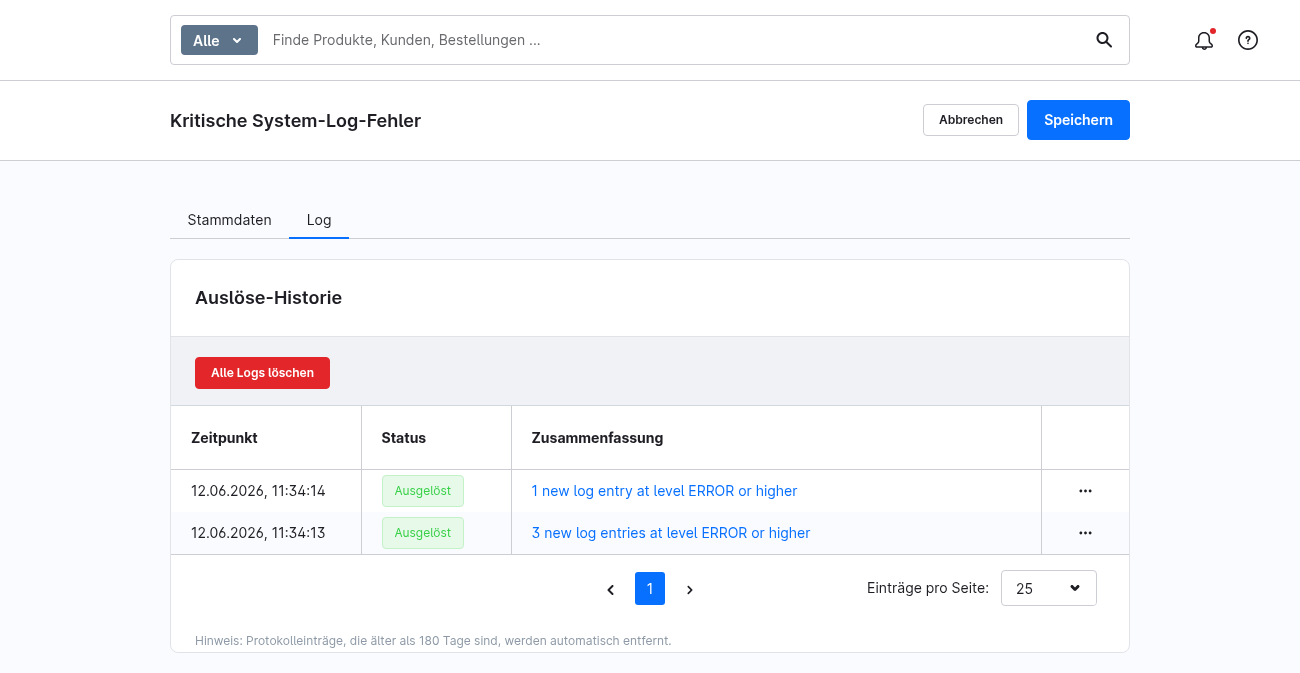
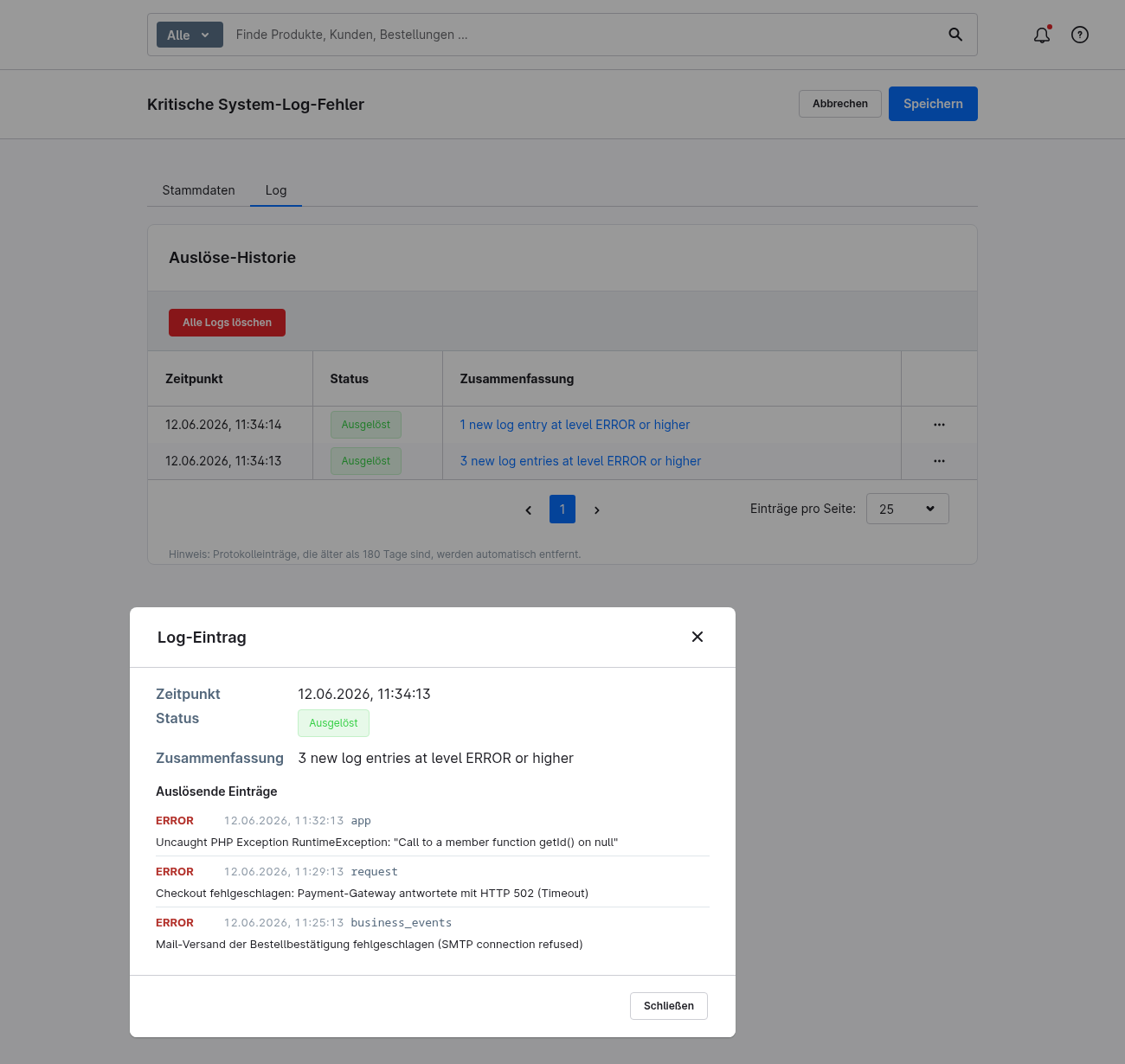
9 · Data protection: Masking of sensitive data
Before being saved or output, error messages and log data are automatically scanned for sensitive data such as login details or tokens, and this information is masked. This ensures that no confidential information appears in emails or the backend log.
This also applies to the information contained in the alert email: passwords and login details, e.g. password=… or a mail server with a login in the address, these are listed there as ***redacted***. For the „Errors from log files“ alert type, email addresses and IP addresses are also masked.
10 · Settings via the Admin API
Do you want to set up alerts via a script or manage them from another system, for example, across several shops at once? If so, you can configure all alert settings via Shopware’s Admin API. You can refer to an alert by its name; you do not need the ID. You can add or remove recipients, exclusions, channels, log files and file patterns individually, without having to resend the entire list.
Access: In the admin panel, under Settings → System → Integrations, create an integration and assign it a role with the following permissions for „Biloba email alerts“: Read; Edit, to make changes; and Create, to set up new alerts. As with any Shopware integration, use your access ID and security key to obtain a token via /api/oauth/token and send it as Authorisation: Bearer with.
Examples for an alert named „Shop error“:
Read the # alert by name
curl -H "Authorization: Bearer $TOKEN" \
  "https://dein-shop.de/api/_action/biloba-notificator/alerts/by-name?name=Shop-Fehler"

Add a # recipient
curl -X POST -H "Authorization: Bearer $TOKEN" -H "Content-Type: application/json" \
  -d '{"add":["technik@dein-shop.de"]}' \
  "https://dein-shop.de/api/_action/biloba-notificator/alerts/by-name/recipients?name=Shop-Fehler"

# Add exclusion
curl -X POST -H "Authorization: Bearer $TOKEN" -H "Content-Type: application/json" \
  -d '{"add":[{"pattern":"Input value \"p\" is invalid","channel":"request"}]}' \
  "https://dein-shop.de/api/_action/biloba-notificator/alerts/by-name/excluded-messages?name=Shop-Fehler"
All routes start with /api/_action/biloba-notificator:
GET /alerts: all alarms, optionally filtered by?name=GET /alerts/{id}orGET /alerts/by-name?name=…: reading an alarmPOST /alerts: Create an alarm; values not included are assigned the default settings as in the admin panelPATCH /alerts/{id}orPATCH /alerts/by-name?name=…: Change settings. InconfigOnly the values sent along with the data are changed.POST /alerts/{id}/{list}orPOST /alerts/by-name/{list}?name=…: Entries with{"add": […], "remove": […]}add or remove.{list}isrecipients,excluded-channelsorexcluded-messages, and for the „Errors from log files“ type, alsofile groupsandfile patterns.
Alarm names are unique and must match exactly when called. If an error occurs, you will receive the appropriate HTTP status and an error code, e.g. 404 if there is no alarm with that name. These routes are available from version 7.3.0 (Shopware 6.7), 6.3.0 (Shopware 6.6) and 5.3.0 (Shopware 6.5) onwards.
FAQs
Support
If you have any questions or problems, please do not hesitate to contact us:
- Support request: biloba-it.de/shopware-plugin-support
- e-mail: support@biloba-it.de
- Phone: +49 (0) 711 - 13633800
No solution found?
Describe your problem to us - we'll take a look at it and get back to you as soon as possible.
 German
  English