
Don’t miss out on any new features
Extension news, updates and practical Shopware tips. Once a month.
Green Claims Checker for product texts
Terms such as „environmentally friendly“, „sustainable“ or „climate neutral“ appear in many product descriptions. The appendix to § 3, paragraph 3 of the UWG lists general environmental statements without evidence of recognized outstanding environmental performance (No. 4a) and statements based on the compensation of greenhouse gas emissions (No. 4c), which are always considered unacceptable to consumers. Source: Appendix to the UWG on gesetze-im-internet.de.
The environmental statement checker searches your German-language product texts for such terms and shows you each match. This way, you know which sections you should check.
- Scan of product name, description, meta title, meta description and keywords
- Summary of hits with product, field, language, text entry, and note
- Replacing a single item with preview and confirmation
- Track history with old and new text; undoing is possible for 6 months
- Your own terms and a list of exceptions for terms that you use intentionally and consistently
- No external services: Your product texts remain in your shop
Prerequisites
- Shopware 6.7 from version 6.7.1
- At least one content language with a German locale (for example de-DE, de-AT or de-CH)
- To automatically delete old history entries, the Scheduled Task Runner from Shopware must be running (Admin Worker or Cronjob)
Compatibility
The extension checks the texts of products and variants. Categories, shopping worlds, and manufacturer texts are not checked. No external services are called up.
Installation
- Obtain the extension in Shopware Store.
- Install and activate it in the admin under Extensions > My Extensions.
- Reload the admin (F5).
- You can now find the environmental statement check in the admin under Catalogues > Environmental statement check.
Rights for employees
Under Settings > System > Users & Rights, you grant a role in the Catalog area the rights to check environmental statements. To view the results, the role also needs the right to view products. To replace, undo, and maintain terms, the role needs the right to edit products.
1 · Start scanning and check for hits
- Open catalogs > Environmental statement check.
- Click on „Start Scan“. The scan runs in batches and shows you how many texts it has already checked and how many matches it has found.
- After that, look at the results. Each row shows the product, field, language, the term found, the text section, and an explanation of why the term might be relevant.
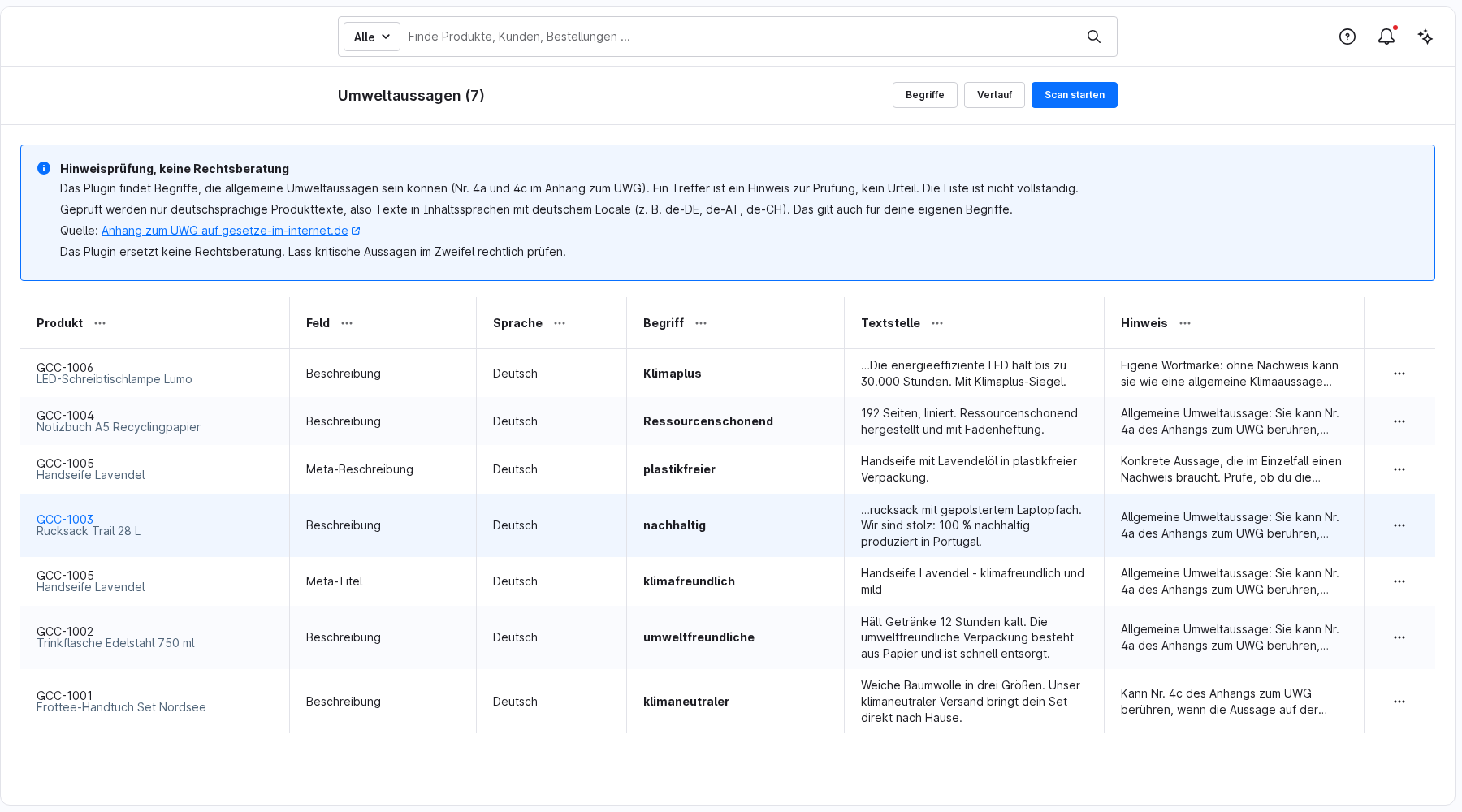
Good to know:
- Common adjectives are found, for example „environmentally friendly“ or „environmentally friendly“. Capitalization and lowercase letters do not matter.
- The description only counts the visible text. HTML tags and attributes are not searched.
- If your shop doesn't have a content language with a German locale, the overview displays a warning. A blank list does not mean that your texts are free of environmental claims.
- If you have changed products, start the scan again so that the list is up to date.
2 · Substitutions
- Open the menu (…) when you find the desired item and select „Replace…“
- Enter the replacement text. Pure text without the characters is allowed.
- Click on „Preview“. You can see the text before and after.
- Everything fits, click „Confirm replacement“.
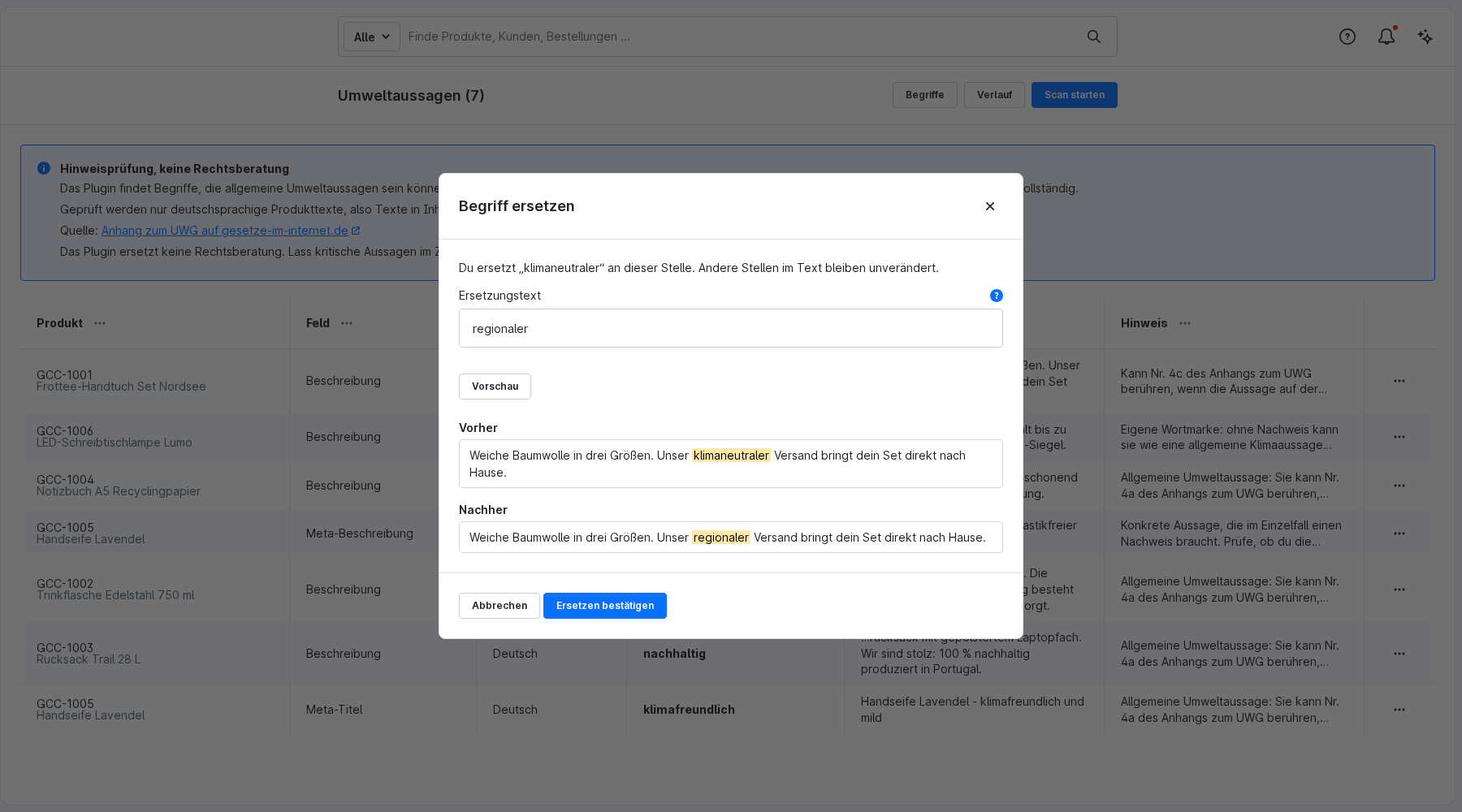
Only the section you have confirmed is replaced. Other sections in the text and the existing HTML remain unchanged. If someone has changed the text since the scan or preview, nothing is written. Then start a new scan.
Inheriting variants from the main product, the dialog prompts you: The variants change with it.
If a term is interrupted by formatting (for example, partially in bold), it cannot be automatically replaced. Then change it directly in the product.
If you use a term deliberately and can prove that you are using it correctly, select „Ignore term“ in the menu. It will no longer be reported in future scans.
3 · Progression and undoing
Under „History“, you can see all replacements with the date, product, field, language, the text before and after, and the status. In the (…) menu of a row, you have three options:
- View full text: shows the complete field before and after.
- Undo: recreates the original text. This is only possible as long as the field has not been changed since the replacement.
- Delete: removes the entry from the history.
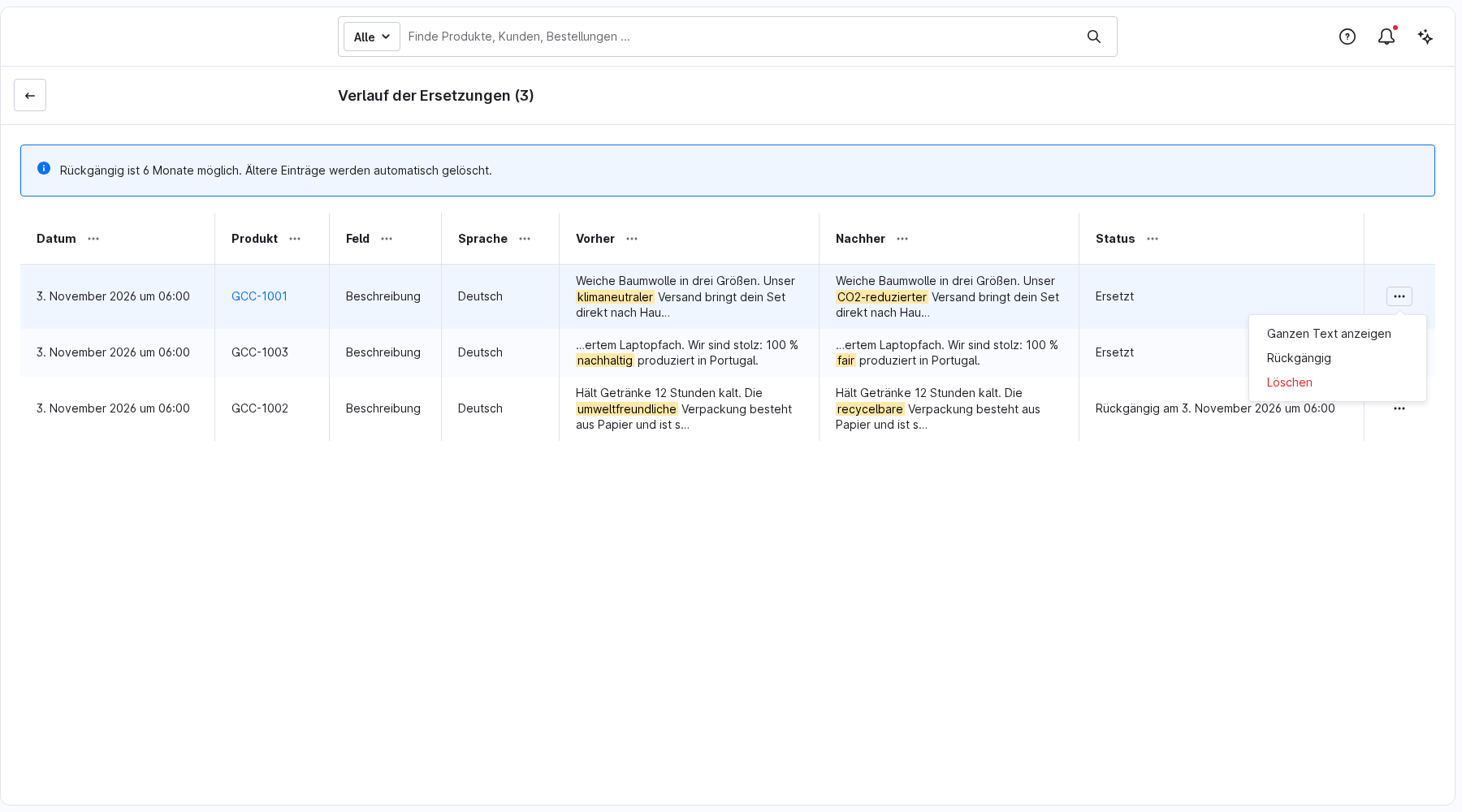
Undo is possible for 6 months. Older entries are automatically deleted.
4 · Adjusting terms
With „Terms“, you can adjust the criteria the scan looks for:
- My own terms: In addition to the included dictionary, you can also search for terms. You can add a brief explanation to each term for reference purposes.
- Ignored terms: are not reported. The basic form is sufficient; common endings such as „-e“ or „-en“ are included.
- Provided lexicon: 21 fixed German terms, each with a reference and, where appropriate, a reference to No. 4a or 4c of the UWG Appendix.
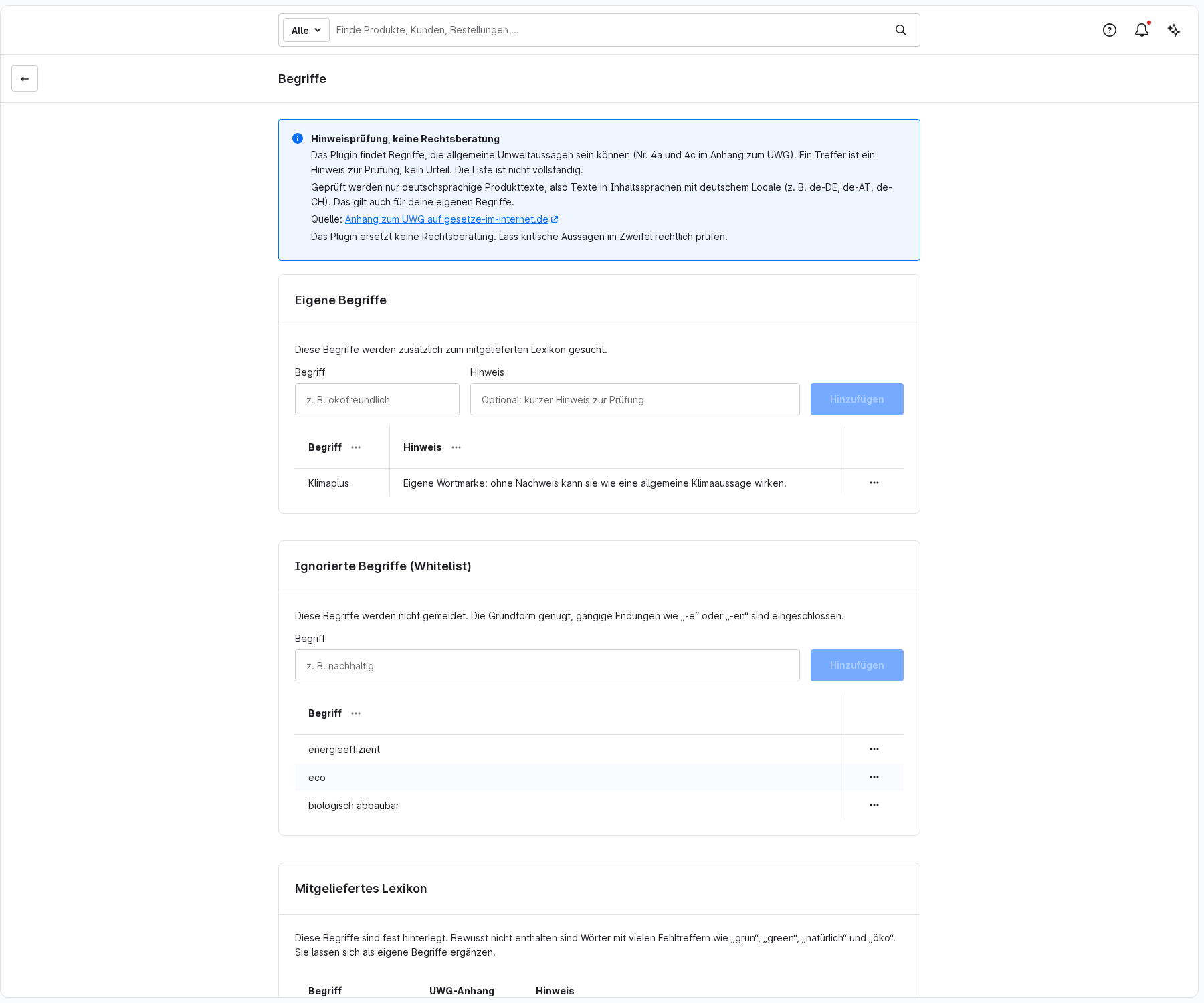
Words with many false matches, such as „green“, „green“, „of course“ and „eco“, are intentionally not included in the dictionary. You can add them as your own terms.
Important note
The environmental statement check is an indication check and does not replace legal advice. A hit means that a term can be a general environmental statement. Whether a statement is inadmissible depends on the individual case. The list of terms is not complete, and the extension finds terms without meaning. If in doubt, please have critical statements legally examined.
FAQs
Support
If you have any questions or problems, please do not hesitate to contact us:
- Support request: biloba-it.de/shopware-extension-support
- e-mail: support@biloba-it.de
- Phone: +49 (0) 711 - 13633800
 German
 English