
Don’t miss out on any new features
Plugin news, updates and practical Shopware tips. Once a month.
What Smart Categories does
Smart Categories automatically populates your categories. You set up rules that link a dynamic product group to a target category. When run, the extension evaluates the product group and records the relevant products as genuine category assignments, just like a manual assignment. Because they are genuine assignments, they take effect everywhere: sorting, product exports and feeds, SEO URLs, breadcrumbs and category listings.
- Rules link a dynamic product group to a target category
- Two modes per rule: Add only or Synchronise
- Preview before each round, showing hit counts and example products
- Manual allocations remain protected by an allocation ledger
- Automatic updates in the event of product changes and daily synchronisation
- Priorities and selectable conflict resolution strategies when there are multiple rules
Prerequisites
- Shopware 6.7
- A running Message Queue Worker. The entire evaluation and writing of the mappings take place asynchronously via the Message Queue. Without a running worker, runs are scheduled but not executed.
Compatibility
- Shopware 6.7
- Uses Shopware’s built-in features: dynamic product groups (product streams) and genuine category assignments. No third-party services and no external calls; version 1.x operates entirely locally.
- Intended for categories with manual product assignment. Categories that themselves use a dynamic product group as their product assignment will ignore materialised assignments. The extension will warn you if you select such a category as the target.
Installation
- Purchase the extension from the Shopware Store and install it via Extensions > My Extensions.
- Enable extension.
- Reload the admin menu by pressing F5 so that the menu item appears.
- You can then find the extension under Catalogues > Smart Categories.
Furnishings
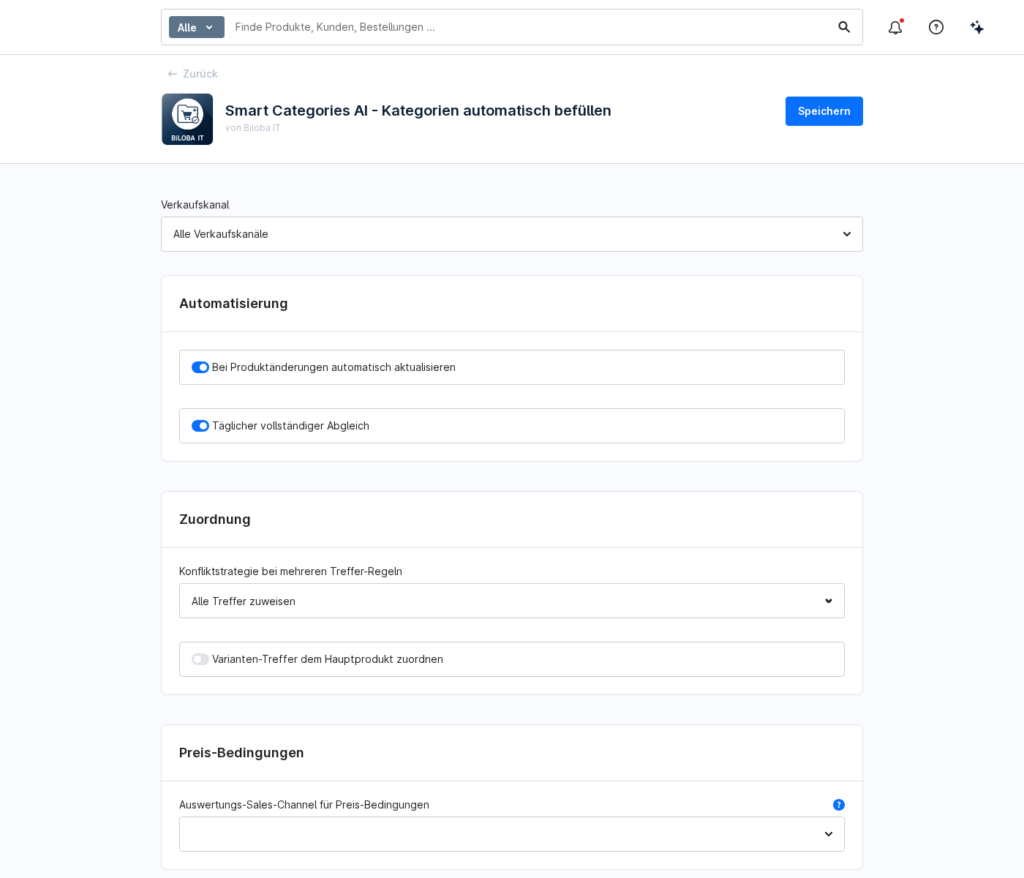
The default settings are already set to sensible values, but you can adjust them. You’ll find them in the extension’s configuration under Settings > System > Plugins, Smart Categories extension.
- Update automatically when products change (default: on): The relevant rules are automatically re-evaluated as soon as products change.
- Daily full scan (default: on): All active rules are evaluated in full once a day.
- Conflict strategy for multiple match rules (default: Assign all matches): Determines what happens when multiple rules match the same product.
- Assign variant matches to the main product (default: off): If a variant match is found, the main product is assigned instead.
- Batch size per processing step (default: 500): the number of products per message queue step. Select a smaller value on less powerful systems.
1 · Create a rule
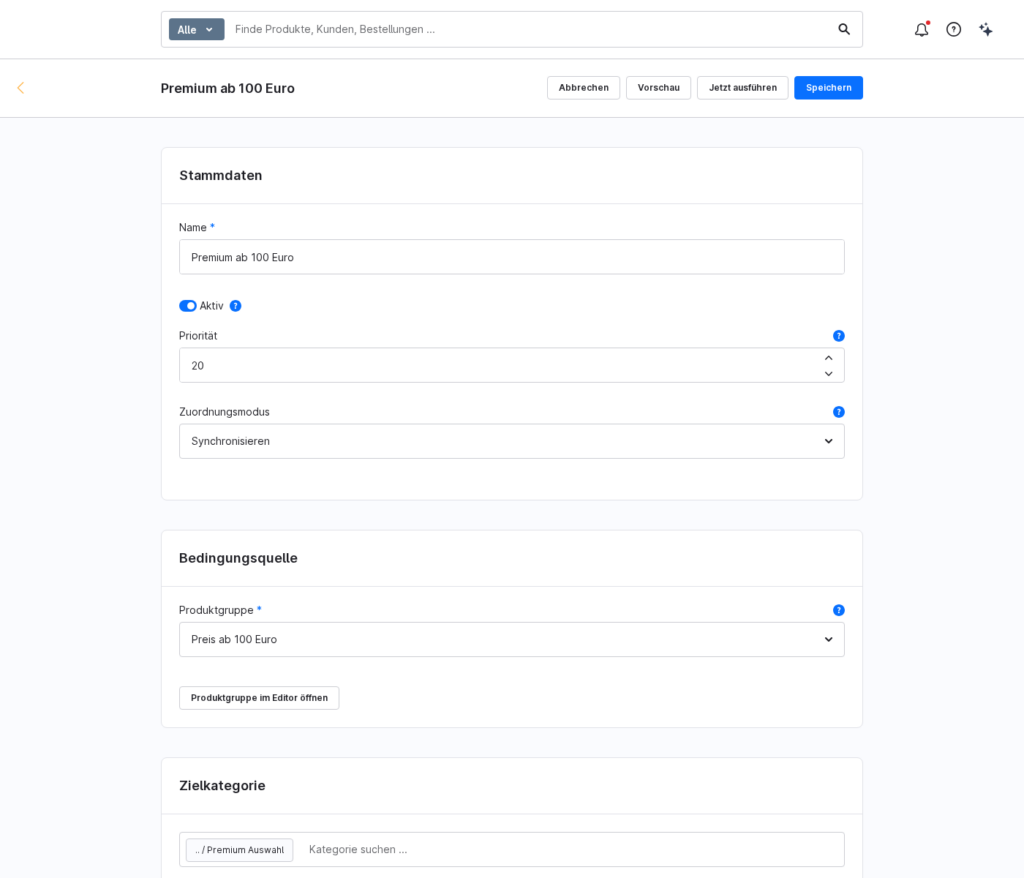
Open Catalogues > Smart Categories and click on ‘Create rule’. In the master data, enter a name, set the rule to ‘Active’ and specify a priority. Under ‘Assignment mode’, select either ‘Add only’ or ‘Synchronise’.
Under ‘Condition Source’, select the product group that determines which products match the rule. Click ‘Open in Editor’ next to ‘Product Group’ to go directly to the product group editor. Under ‘Target Category’, select the category to which the matching products will be assigned. Then save the rule.
2 · Mappings
Each rule operates in one of two modes:
- Just to add: Relevant products are added to the category. The rule never removes anything, regardless of how the product group changes later on.
- Synchronise: The rule manages its own mappings entirely and removes products that are no longer a match. Only mappings created by this rule itself are removed.
3 · Preview before each race
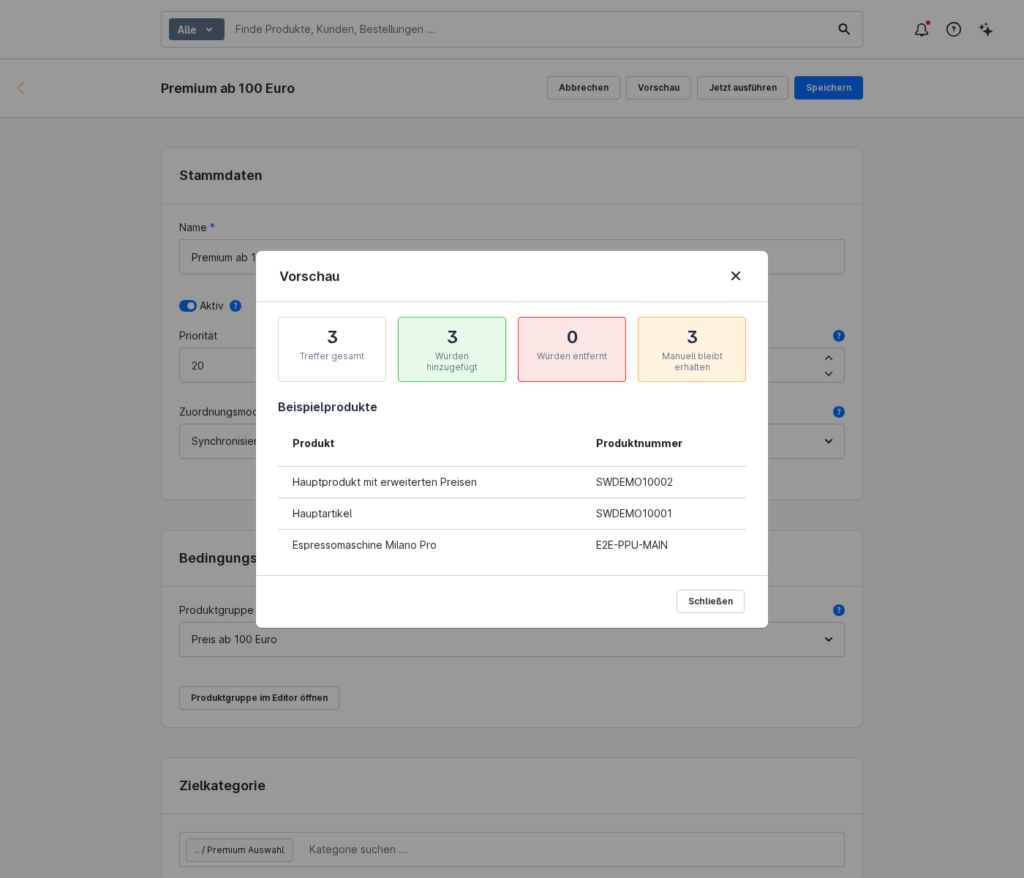
The Preview function allows you to see the result before anything is written. The preview shows you the key figures ‘Total hits’, ‘Added’, ‘Removed’ and ‘Manually retained’, along with a list of sample products.
4 · Executing rules and automatic triggers
You can run a single rule using ‘Execute Now’, and all active rules using ‘Execute All Rules’ in the rule list. Runs are scheduled via the message queue and processed asynchronously.
In addition, the system runs automatically: when changes are made to products or product groups, the relevant rules are automatically re-evaluated, and a full synchronisation takes place once a day. Both of these functions can be disabled in the configuration.
5 · Priorities and Conflict Strategy
Every rule has a priority. If several rules apply to the same product, the conflict resolution strategy determines the outcome:
- Assign all matches (default): The product is assigned to every matching target category.
- Highest priority only: The product is assigned only by the rule with the highest priority.
6 · Protection of manual assignments
The extension maintains an allocation ledger and records every allocation it creates in it. In ‘Synchronise’ mode, removals are carried out exclusively on the basis of this ledger. Manual allocations are never recorded in the ledger and are therefore technically never affected. This means you can use the automated feature in your live shop without any concerns.
7 · Rules directly within the category
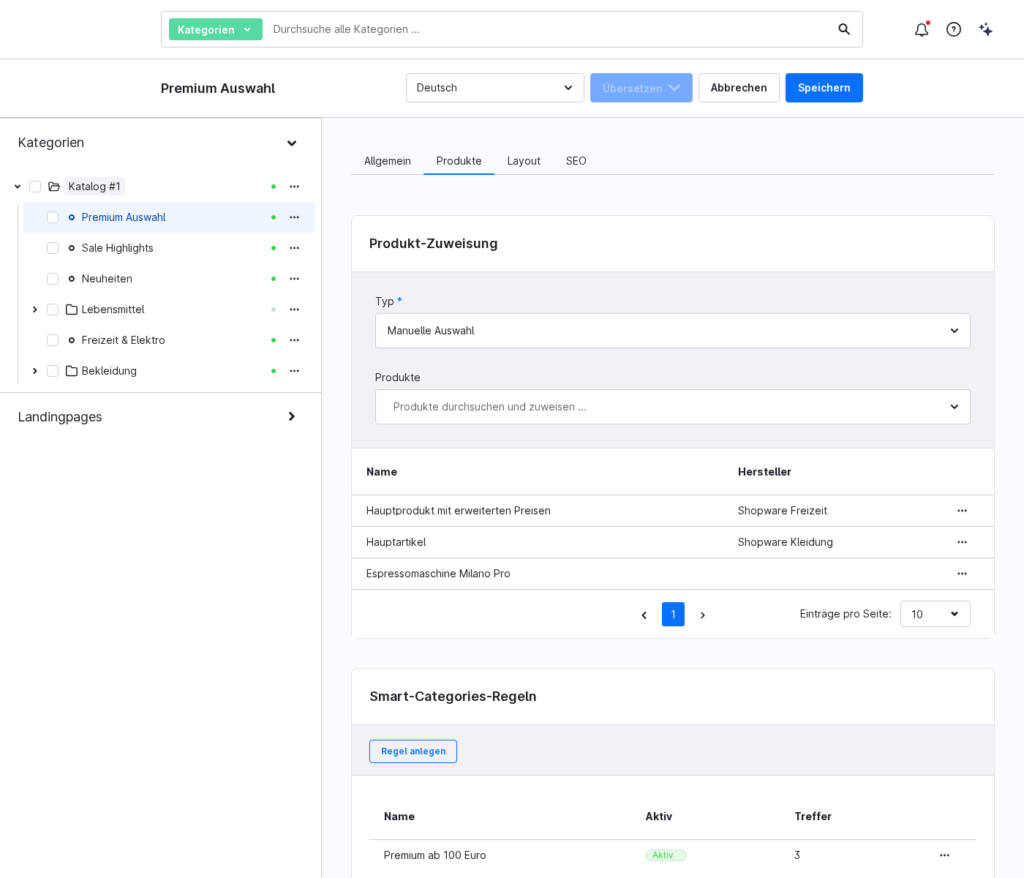
On the category details page, you’ll find the ‘Smart Categories Rules’ tab in the ‘Products’ section. There you can view all the rules that apply to this category, create a new rule using ‘Create Rule’, and run an existing rule directly by clicking ‘Run Now’.
8 · Delete rule
When you delete a rule, you decide what happens to its assignments:
- Retain assignments: The category assignments created by the rule are retained.
- Remove assignments: The category assignments created by the rule will be deleted.
When you uninstall the extension, materialised mappings are retained, as they are standard shop data. If you want to remove the mappings associated with a rule, delete the rule first using the ‘Remove mappings’ option.
FAQs
Support
If you have any questions or problems, please do not hesitate to contact us:
- Support request: biloba-it.de/shopware-plugin-support
- e-mail: support@biloba-it.de
- Phone: +49 (0) 711 - 13633800
 German
  English