
Don’t miss out on any new features
Plugin news, updates and practical Shopware tips. Once a month.
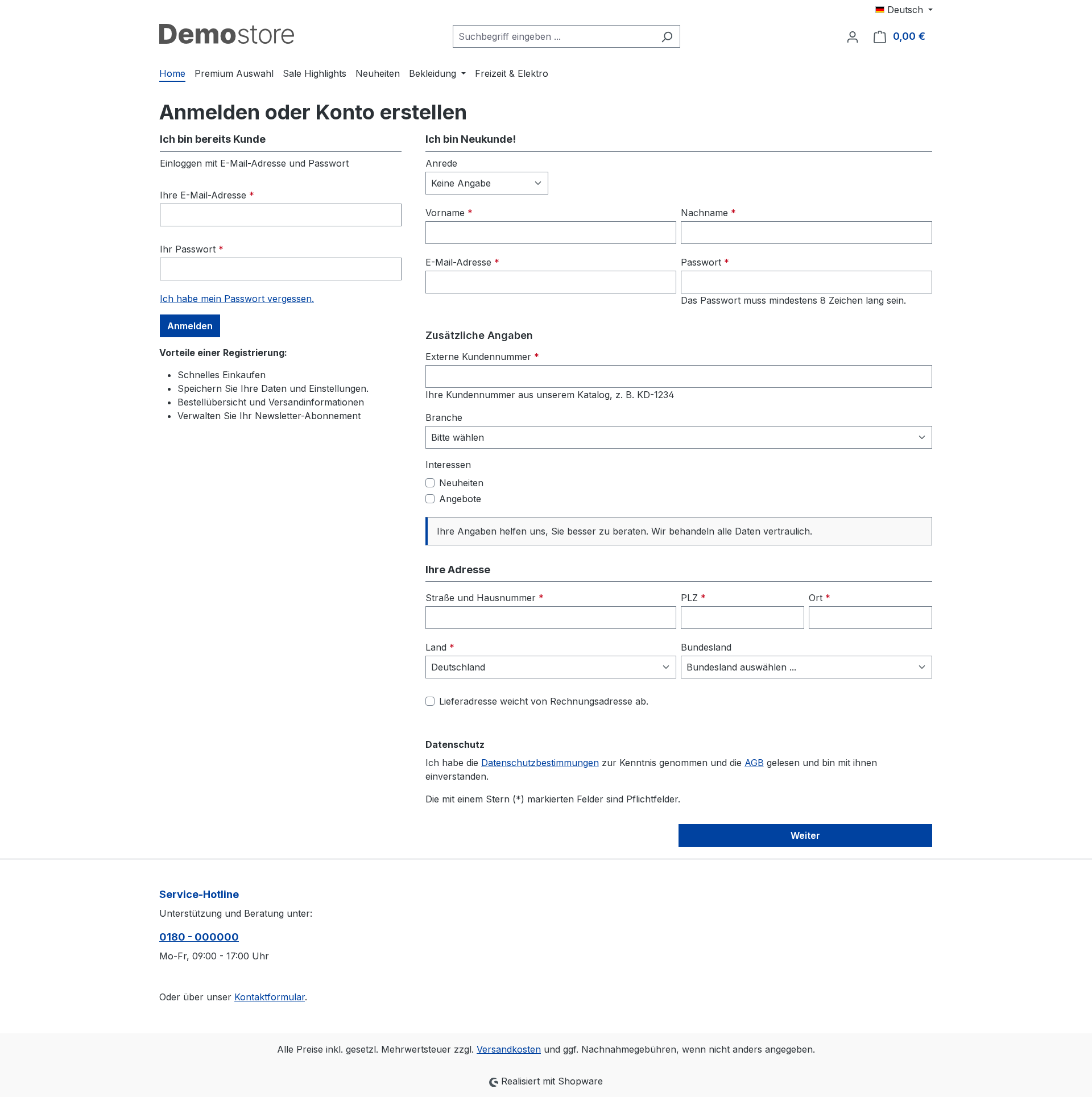
Additional Fields Pro extends the registration, customer account and address forms with custom fields that you define yourself. You manage the field definitions in the administration panel; the values are stored as native additional fields directly within the customer and address records. There is no parallel structure and no additional tables for the values, so the Admin API, import/export functions and transfer to the order all work without any extra effort.
- Eight field types: text field, multi-line text field, drop-down list, multiple selection, tick box, Yes/No switch, date and information text
- Fields in the registration form (including guest and checkout registration), in all address forms, and visible in the customer account
- Server-side validation: required field, maximum length, regular expression with custom error message and whitelist of options
- Restricting individual fields to specific customer groups
- Multilingual labels, help texts, error messages and option labels
- Values are automatically carried over into the order; this is visible in the order overview in the administration section
- Express Checkout remains unaffected; mandatory fields do not block PayPal Express or API registrations
Prerequisites
- Shopware 6.7
- No external services, no additional PHP extensions
- Access to the administration panel with permissions for settings and customers
Compatibility
- Sales channels: all storefront channels that use registration and address management
- Entities concerned: customer, customer address, and the order copies for the ordering customer and the order address
- Express checkout methods such as PayPal Express will continue to operate as normal
- Values can be retrieved via the Shopware Import/Export tool and the Admin API
Installation
- Expansion in the Shopware Store purchase it or start the 30-day trial period.
- In the administration under Extensions > My extensions install and activate.
- Refresh your browser by pressing F5 so that the new module appears in the menu.
- Under Settings > Additional Fields Pro Create the first field.
Furnishings
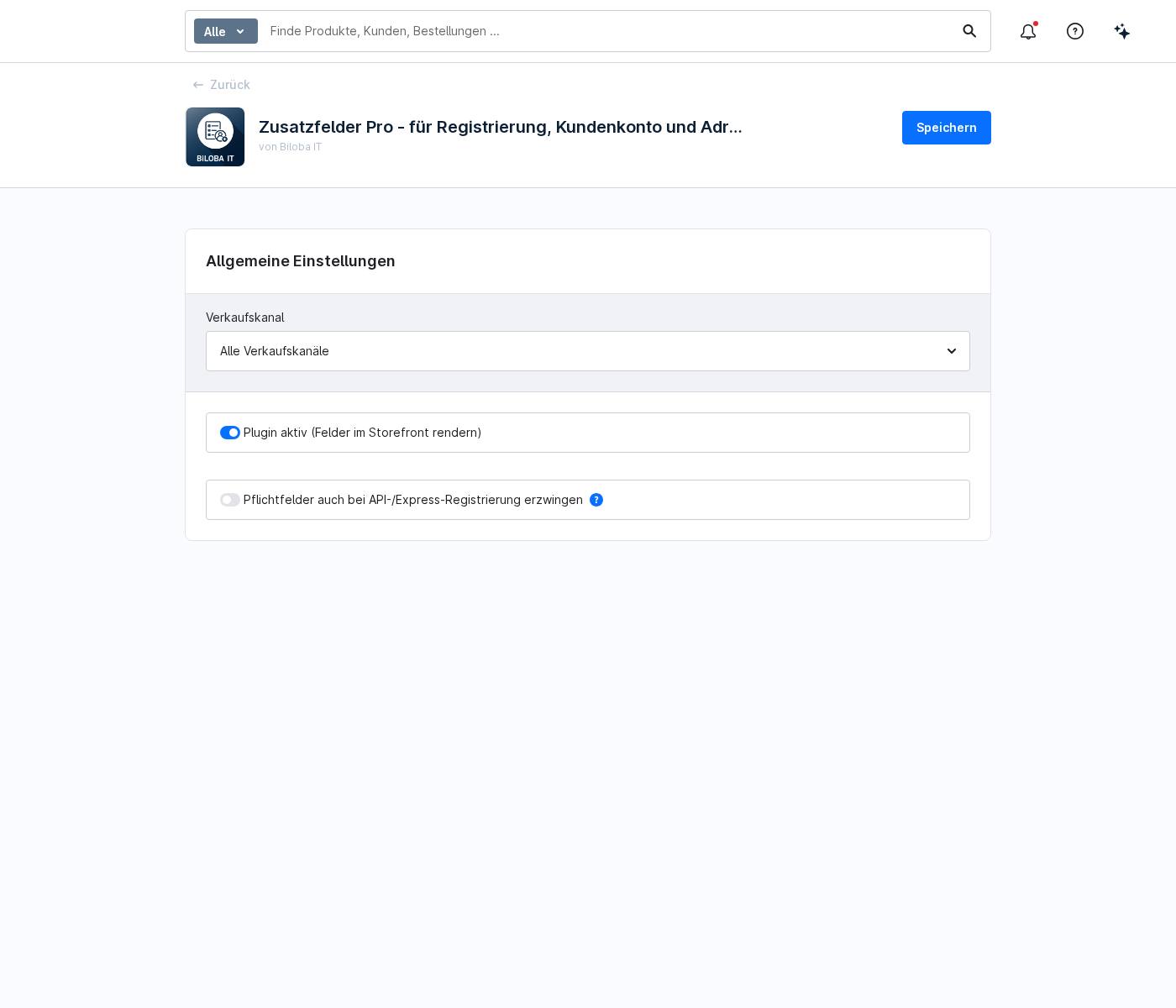
You can find the default settings in the extension’s configuration under Extensions > My Extensions > Additional Fields Pro > Configuration.
- Plugin active: controls whether the fields are displayed and validated in the storefront. If the option is disabled, all definitions and values are retained; nothing is simply displayed.
- Enforce mandatory fields for API and Express registration as well: By default. Only enable this option if every registration method can actually provide the required fields; otherwise, you will cause express checkouts to fail.
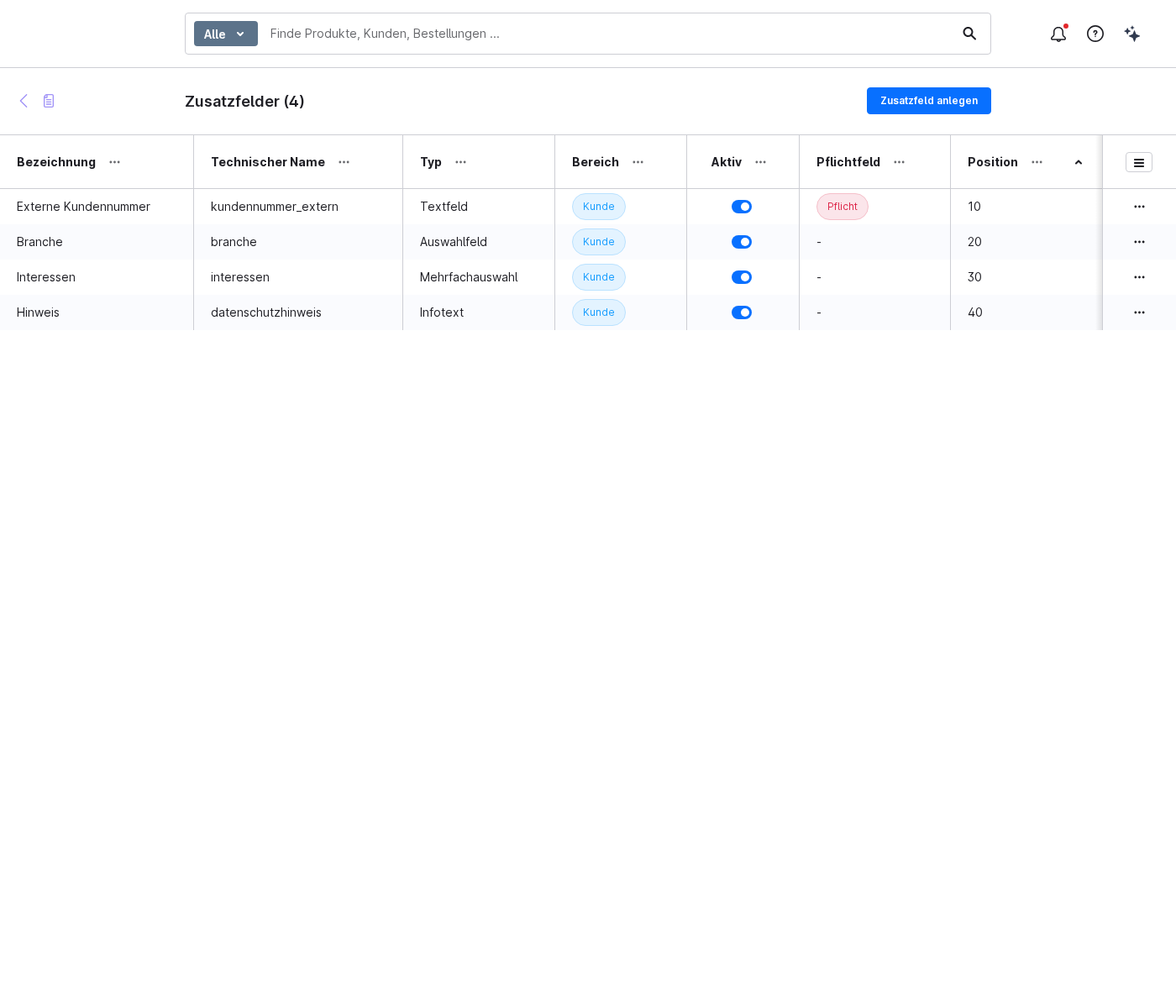
1 · Manage additional fields
The module can be found at Settings > Additional Fields Pro. The list shows all fields, including their label, technical name, field type, range, position, and the ‘Active’ and ‘Required’ indicators.
- Create an additional field opens the editor for a new field.
- Clicking on a row opens an existing field for editing.
- About the Position You determine the order in the form; smaller values appear higher up.
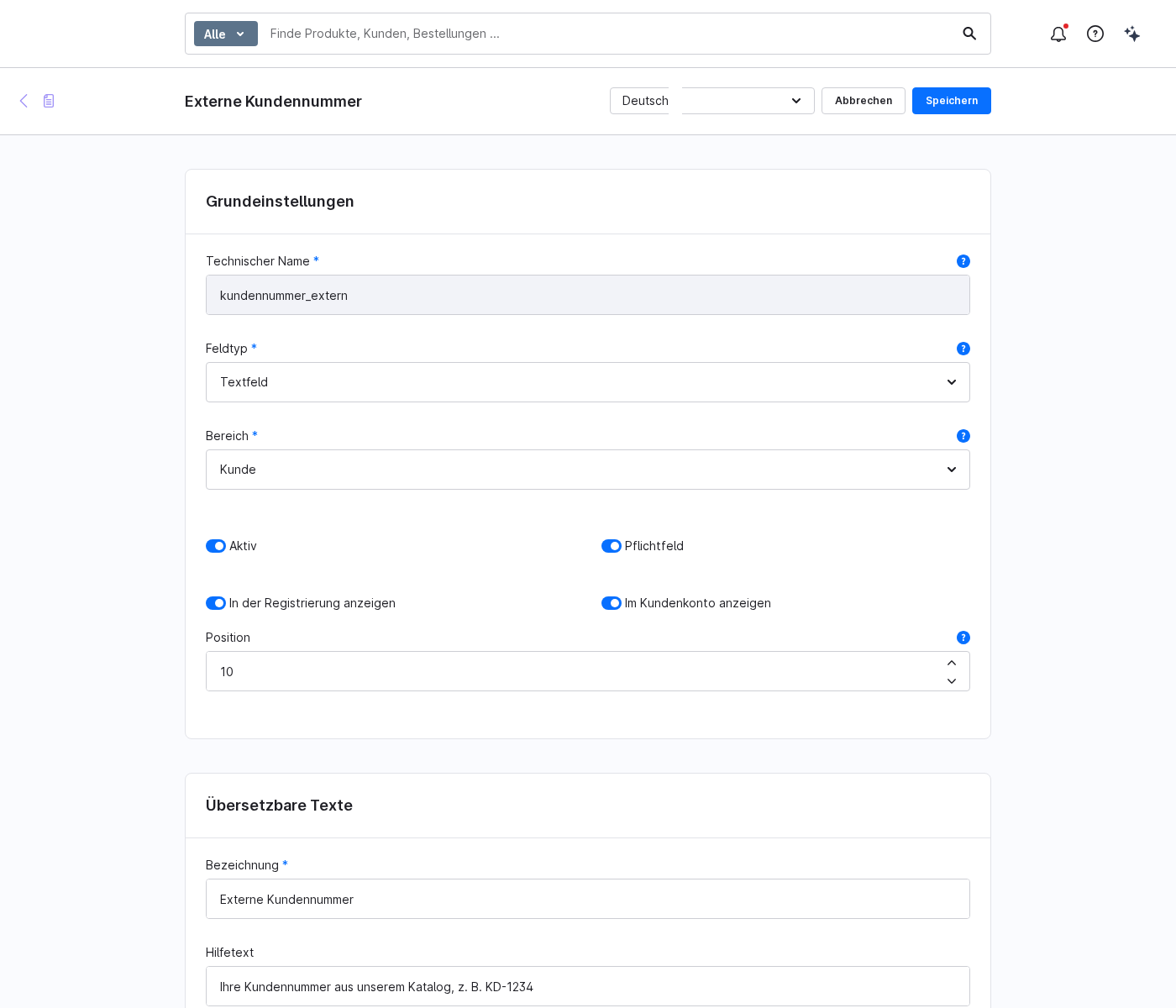
2 · Create and validate a field
Basic settings
- Technical name: Lower-case letters, numbers and underscores, starting with a letter. This forms the key for the additional field (for example, biloba_ca_tax_number) and cannot be changed once saved.
- Field type: Text field, multi-line text field, drop-down menu, multiple selection, tick box, Yes/No button, date or information text. The information text is for display purposes only; it is neither validated nor saved.
- Section: 'Customer' means one value per customer account; 'Address' means one value per address.
- Active, Required field, Show during registration, Show in customer account: taxes, visibility and obligation.
Validation
All checks are carried out on the server side, so they still apply even if someone bypasses the form.
- Maximum length for text and multi-line text; leaving this blank means no limit.
- Validation patterns as a regular expression, for example ^DE[0-9]+$ for a German tax number.
- Error message for each language; it appears when the input fails the check.
- For drop-down menus, only the configured options are accepted.
Visibility
Under Customer groups If you restrict a field to specific groups, no selection means the field applies to everyone. In B2B scenarios, please note that a customer does not yet have a group at the time of registration. The system will then check the default customer group for the sales channel.
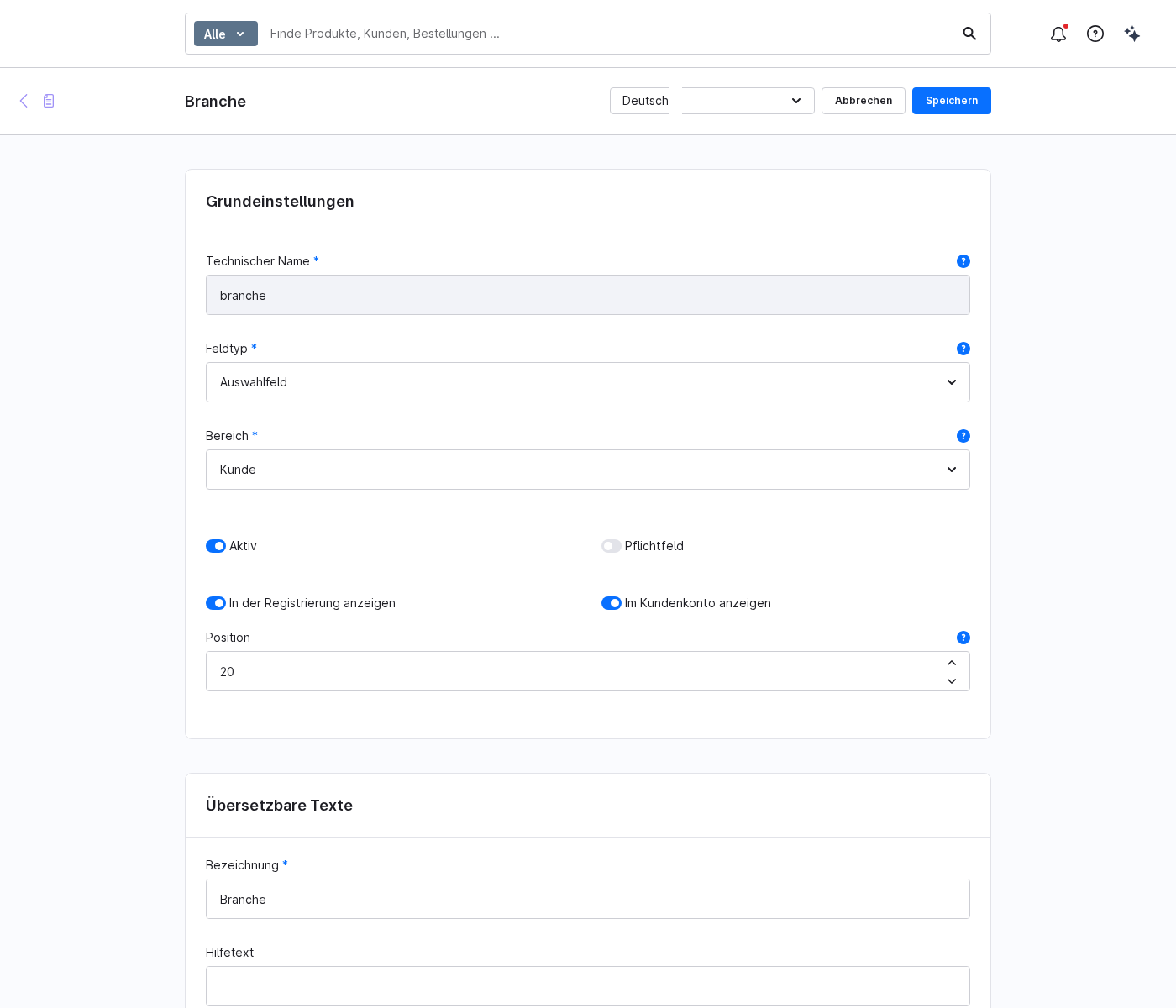
3 · Options and translations
For radio buttons and multiple-selection fields, you set this in the Options the available options. The technical value is saved, whilst the label is displayed. This allows you to change the label later without altering the saved data.
Labels, help text, placeholders, error messages and option labels can be translated. Change the language in the editor and maintain the texts for each storefront language. If a translation is missing, the value from the system language is used.
4 · Display in the shop and on the order form
- Registration: Customer and address fields can be edited, even during guest and checkout registration.
- Address forms: Address fields can be edited when creating and editing an address, as well as during checkout.
- Customer account: Customer fields are displayed in the profile, but cannot be edited there.
- Administration, Customer details: Customer and address fields can be edited in the General tab.
- Administration, Order details: the values at the time of ordering, read-only.
Shopware handles the transfer to the order itself. The extension merely reads this status; it does not write any order data. If a customer subsequently changes their profile, the order therefore remains unchanged.
FAQs
Support
If you have any questions or problems, please do not hesitate to contact us:
- Support request: biloba-it.de/shopware-plugin-support
- e-mail: support@biloba-it.de
- Phone: +49 (0) 711 - 13633800
No solution found?
Describe your problem to us - we'll take a look at it and get back to you as soon as possible.
 German
  English