
Don’t miss out on any new features
Plugin news, updates and practical Shopware tips. Once a month.
Pinterest Tag & Conversions API (CAPI)
With this extension, you can seamlessly integrate the Pinterest tag into your Shopware shop and also transmit all relevant shop events on the server side via the Pinterest Conversions API (CAPI v5). This allows you to measure your Pinterest campaigns accurately – in compliance with data protection regulations and only after cookie consent has been given.
- Client-side Pinterest Tag and server-side Conversions API (CAPI v5)
- Deduplication of browser and server events using a shared event ID
- Events tracked: page_visit, view_category, search, add_to_cart, checkout, optional lead
- Enhanced Match with email hashed on the server using SHA-256
- Customised events for each route and the targeted exclusion of specific customer groups
Prerequisites
- A Pinterest Business account with an ad account set up and access to Ads Manager
- For the server-side Conversions API, you will also need a Conversions API access token from Pinterest Ads Manager
- Shopware 6.7
- An active cookie consent manager (Shopware’s standard option or a supported external tool) to ensure the tag is loaded in compliance with the law
Compatibility
The extension is compatible with Shopware 6.7. The client-side tag is loaded via the official Pinterest tag code, whilst server-side data is transmitted directly from your shop to the Pinterest Conversions API. No additional third-party plugins are required.
Installation
- Purchase the extension from the Shopware Store and install it in your shop.
- Extension under Extensions activate.
- Open the configuration and enter the Pinterest tag ID (as well as, optionally, the ad account ID and Conversions API token) (see „Set-up“).
- Clear the Storefront cache or reload the page so that the tag is displayed.
Furnishings
Before you configure the extension, you’ll need some login details from Pinterest Ads Manager (ads.pinterest.com):
- Tag ID: Go to Ads › Conversions or „Pinterest tag“ and create or open your Pinterest tag. The tag ID is purely numerical.
- Ad Account ID: It appears in the Ads Manager URL (
ads.pinterest.com/advertiser//...) or in your account settings. - Conversions API access token: Under Ads › Conversions › Conversions API Generate. Pinterest only displays the token once – make a complete copy of it straight away and treat it like a password.
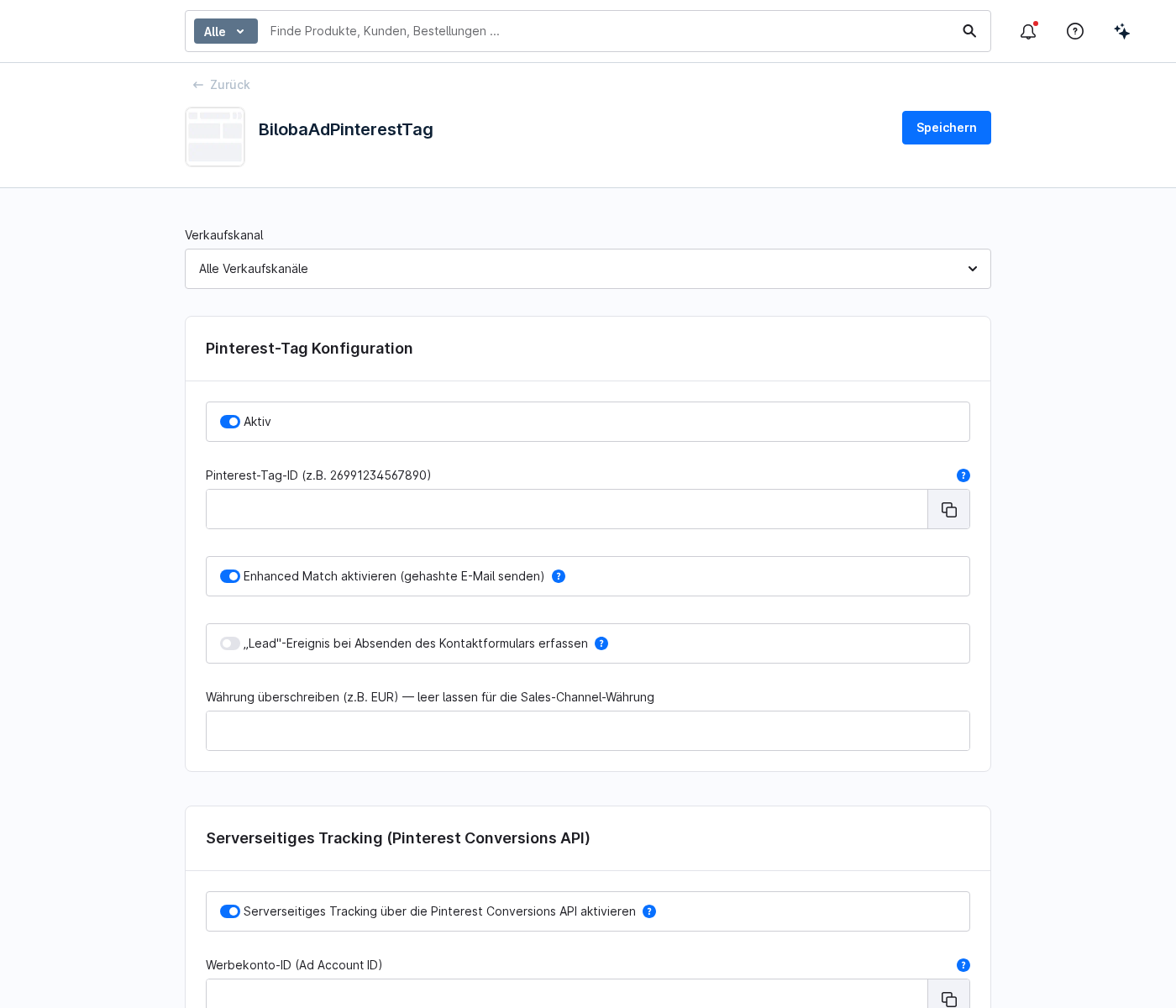
Next, open the plugin configuration at Extensions › My extensions under the entry „Pinterest Tag & Conversions API (CAPI)“ via the three-dot menu › Configuration. Select the desired sales channel from the options above and configure the following settings:
- Active: Enables tracking for the selected sales channel.
- Pinterest tag ID: Your tag ID from Ads Manager.
- Server-side tracking via the Conversions API: Enables additional server-to-server transmission.
- Ad Account ID and Conversions API access token: The figures obtained from Ads Manager as described above.
- Enhanced Match: Optional. Also sends a hashed email.
- Consent Manager: Select the cookie consent manager used in your shop.
1 · Events recorded
If tracking is enabled and consent has been given, the extension automatically records the key events in the purchasing process and reports them to Pinterest:
- page_visit: every page view in the storefront (client-side)
- view_category: Category and listing pages (client-side)
- search: Search results pages (client-side)
- add_to_cart: Item added to the shopping basket (server-side only)
- checkout: Completed order with turnover, currency and items (on both the client and server sides, deduplicated)
- lead: Successful contact form submission (optional, can be enabled on the client side)
Category and search pages are often cached via HTTP: a cached page request does not run through PHP and, without special handling, would display a single, reused event ID to all visitors. For this reason, these two events are triggered exclusively on the client side with a runtime-generated event ID.
2 · Conversions API & Enhanced Match
In addition to the client-side tag, the extension transmits the same events on the server side via the Pinterest Conversions API (CAPI v5) directly from your shop to Pinterest. Browser and server events share a common event ID, so that Pinterest can reliably deduplicate them and count each event only once.
Server-side tracking operates independently of ad blockers and browser restrictions, thereby ensuring significantly more reliable conversion measurement. Well-known crawler user agents are automatically excluded from server-side events.
When Enhanced Match is enabled, the extension also sends a hashed email address to the Conversions API. The hashing is carried out on the server using SHA-256 – plaintext data never leaves your shop. This enables Pinterest to attribute conversions to the correct users more reliably.
- Server-side tracking via the Conversions API: Enables server-to-server transmission.
- Enhanced Match: also sends a hashed email.
- Sending Conversions API requests asynchronously: Processes requests via the Shopware Message Queue without slowing down the storefront. Requires a running Message Queue worker.
- Minutes: records the Conversions API calls in the Shopware logs for diagnostic purposes.
3 · Cookie Consent & Data Protection
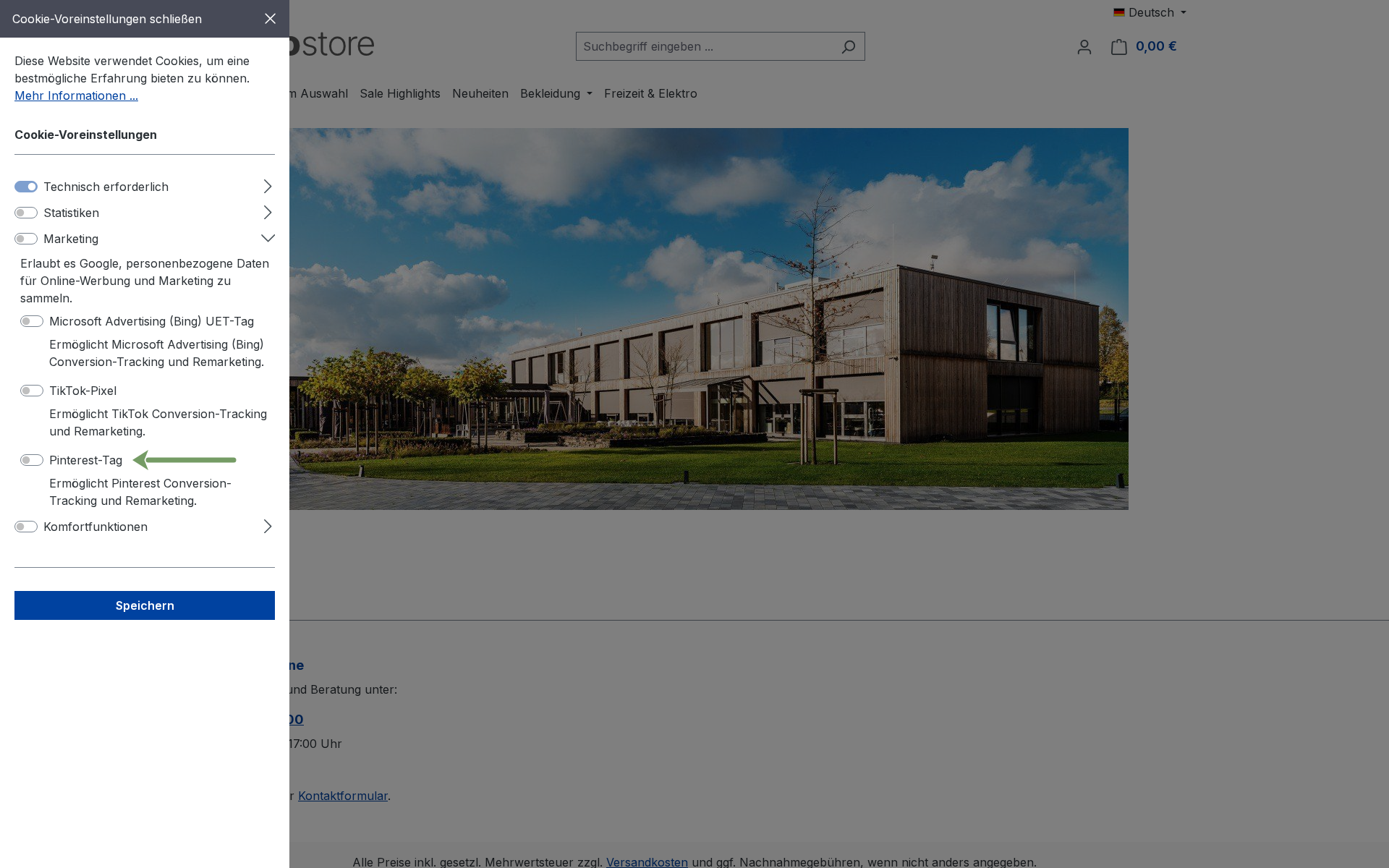
The Pinterest tag is only loaded once the visitor has consented to the „Marketing“ category. If consent is withdrawn, tracking stops immediately – the queue is cleared, the tag is deactivated and any Pinterest cookies that can be accessed are removed.
The Shopware Cookie Consent Manager and seven external consent tools are supported:
- Cookiebot
- CookieFirst
- Usercentrics
- ACRIS EU Cookie Policy Pro
- CCM19
- CMP
- CookieYes
With Shopware Cookie Consent Manager, Cookiebot, CookieFirst, CookieYes and ACRIS EU Cookie Policy Pro, the extension can also read the consent on the server side – the Conversions API only sends an event if marketing consent has actually been given. With Usercentrics, CCM19 and CMP, consent is stored exclusively in the browser and cannot be reliably read on the server side: for security reasons, the server-side event is not triggered in these cases, but the client-side tag continues to fire as normal once consent has been given.
Data protection notice: Enhanced Match transmits an SHA-256-hashed email address; this is hashed before the visitor leaves your shop. The Conversions API also sends the visitor’s IP address and user agent in plain text to Pinterest – this is necessary for matching and is standard practice for server-side conversion APIs. Pinterest Inc. processes this data in the USA. Please disclose this data transfer in your privacy policy.
4 · Try it for yourself
Before you activate tracking, we recommend carrying out a quick functional test:
- Enable test mode: Enable test mode in the plugin configuration. Server-side events will then be logged using
?test=truesent – Pinterest validates the payload but does not count the events as genuine conversions. - Check client events: Install the free browser extension „Pinterest Tag Helper“ (Chrome Web Store) and visit your shop. The extension will display page_visit, view_category, search and checkout in real time as soon as marketing consent has been given.
- Check server events: `add_to_cart` is deliberately server-side only and therefore appears not in the Pinterest Tag Helper. Check ‘add_to_cart’ and the server-side checkout events in Pinterest Ads Manager instead, under Conversions › Event History or the test events.
- Check deduplication: The client and server checkout events share the same event ID – in the event history, the order should only be counted once as a conversion, even though both channels send an event.
- Disable test mode: Once the test has been successfully completed, switch off test mode so that events are counted in the production environment.
5 · Multiple sales channels & other options
- Multiple sales channels: Select the relevant sales channel at the top of the configuration and enter a separate tag ID, ad account ID and conversion API token for each channel.
- Own events: Define additional client-side events for each page or route via the configuration, without any need to modify the code.
- Gross/Net: Specify whether turnover is to be reported on a gross or net basis.
- Order value: Please provide the order value, including or excluding delivery charges.
- Exclude customer groups: Exclude specific customer groups (e.g. retailers or internal groups) from tracking.
- Override currency: Optionally, specify a fixed currency instead of the sales channel currency.
- 24 languages: Administration and storefront texts are available in 24 languages.
FAQs
Support
If you have any questions or problems, please do not hesitate to contact us:
- Support request: biloba-it.de/shopware-plugin-support
- e-mail: support@biloba-it.de
- Phone: +49 (0) 711 - 13633800
No solution found?
Describe your problem to us - we'll take a look at it and get back to you as soon as possible.
 German
  English